Reliability and Validity
Reliability checks whether a questionnaire measures consistently; validity checks whether it measures what it claims to. This tutorial explains alpha, omega, reverse-scoring, inter-rater agreement, content validity and CFA in plain language, and shows how to run the whole analysis code-free… Read more …
Before the total score of a questionnaire can be used in research, two questions must be answered. Does the questionnaire measure consistently (reliability)? Does it measure what it claims to measure (validity)?
This tutorial introduces the basic concepts, including Cronbach’s alpha, McDonald’s omega, reverse-scored items, the item-total correlation, inter-rater agreement, content validity and confirmatory factor analysis. It then provides a step-by-step guide to performing the analysis in the RAISINS platform. You will learn how to prepare your data, select the items, mark reverse-scored items, read every results table, generate publication-ready plots and reports, and use the built-in RA-One AI assistant to better understand your results. No programming knowledge is required.
1 What is Reliability and Validity?
Suppose you built a 10-item questionnaire to measure job satisfaction and gave it to 40 employees. Each employee rated every item on a scale from 1 to 5. Before you add up the ten items and use the total score, you need to answer two separate questions.
- Reliability - Does the questionnaire measure consistently? If an employee answered it twice, a week apart, with no real change in satisfaction, would the total score be roughly the same?
- Validity - Does the questionnaire measure what it claims to measure? Are the items really measuring job satisfaction, and not something else?
A questionnaire can be reliable without being valid. A bathroom scale that always reads 5 kg too light is very consistent, but it is wrong every time. However, a questionnaire cannot be valid without being reliable. A score that is mostly random noise cannot measure anything real.
For this reason, reliability is checked first, and validity is checked next.
Reliability is about the consistency of measurement; validity is about the correctness of measurement. A questionnaire needs both before its total score can be trusted.
1.1 Cronbach’s alpha, in plain language
Cronbach’s alpha (α) is the most widely reported reliability coefficient. It is a single number, usually between 0 and 1, that shows how consistently the items of a scale move together.
- A high alpha means respondents who score high on one item tend to score high on the others.
- A low alpha means the items do not agree with each other, so their total is not a stable score.
Alpha is a property of the scores in your sample, not a fixed property of the questionnaire. The same items can give a high alpha in one sample and a lower alpha in another.
| Alpha | Usual label |
|---|---|
| ≥ 0.95 | Excellent, but check for redundant items |
| 0.90 - 0.94 | Excellent |
| 0.80 - 0.89 | Good |
| 0.70 - 0.79 | Acceptable |
| 0.60 - 0.69 | Questionable |
| 0.50 - 0.59 | Poor |
| < 0.50 | Unacceptable |
Behind the scenes (optional): the alpha formula
Most users never need this. For a scale of \(k\) items, alpha is calculated as:
\[\alpha = \frac{k}{k-1}\left(1 - \frac{\sum_{i=1}^{k}\sigma^2_i}{\sigma^2_X}\right)\]
where \(\sigma^2_i\) is the variance of item \(i\) and \(\sigma^2_X\) is the variance of the total score. RAISINS computes this automatically; no manual calculation is required.
A very high alpha (above about 0.95) is not automatically good news.
It usually means that several items are saying almost the same thing in different words. A good scale should cover different aspects of the construct, not repeat one question many times.
If your alpha is above 0.95, read the items again and look for near-duplicates before reporting it as a strength.
1.2 McDonald’s omega
Cronbach’s alpha assumes that every item measures the construct equally well. In practice, some items are always better indicators than others. When this assumption does not hold, alpha underestimates the true reliability.
McDonald’s omega (ω) does not make this assumption. It gives more weight to the items that are more strongly related to the construct:
\[\omega = \frac{\left(\sum_i \lambda_i\right)^2}{\left(\sum_i \lambda_i\right)^2 + \sum_i \left(1-\lambda_i^2\right)}\]
where \(\lambda_i\) is the standardised loading of item \(i\) on a single common factor.
Current guidance recommends reporting omega together with alpha, not instead of it. RAISINS reports both automatically.
1.3 Reverse-scored items
Many questionnaires mix positively and negatively worded items on purpose. For example:
- “I enjoy my work.” (positive)
- “I often dread coming to work.” (negative)
A negatively worded item must be reversed before it is added to the others. Otherwise, a very satisfied employee would lower the total score on that item instead of raising it.
RAISINS reverses an item using the full range of the response scale:
\[x_{\text{reversed}} = (\text{scale}_{\min} + \text{scale}_{\max}) - x\]
On a 1 to 5 scale, a score of 2 becomes \((1 + 5) - 2 = 4\).
RAISINS never reverses an item that you did not mark. If an item still correlates negatively with the rest of the scale after your reversals, RAISINS shows a warning naming that item. It does not flip it silently.
This is deliberate. Silently reversing items can make a weak scale look excellent without the researcher ever knowing. Section 8.4 shows how large that effect can be.
1.4 Reading the item-total correlation
The corrected item-total correlation is the correlation between one item and the total of all the other items. It answers a simple question: does this item behave like the rest of the scale?
- A value of 0.50 or above indicates a strong item.
- A value below 0.30 indicates a weak item that is rarely worth keeping.
RAISINS also reports alpha if item dropped, which is the alpha the scale would have without that item. If removing an item would increase alpha, the item may be measuring something else, or it may be badly worded.
2 Which Tab Should I Use?
RAISINS answers four different questions from a single uploaded file. Each question has its own tab.
| Tab | Question it answers | How the file is read | Coefficients reported |
|---|---|---|---|
| Internal Consistency | Do the items of one scale agree with each other? | Rows = respondents, columns = items | Cronbach’s alpha, McDonald’s omega, Guttman’s lambda, item-total correlation |
| Inter-rater | Do independent raters agree with each other? | Rows = raters, columns = subjects being rated | Fleiss’ kappa, intraclass correlation (ICC), Krippendorff’s alpha |
| Content Validity | Do experts agree the items are relevant? | Rows = experts, columns = items | Content validity ratio (CVR), content validity index (I-CVI, S-CVI) |
| Construct Validity | Do the items measure the construct the theory predicts? | Rows = respondents, columns = items | Confirmatory factor analysis, AVE, composite reliability |
The Explore tab uses the same layout as Internal Consistency. It checks whether the items are suitable for factor analysis and how many factors they form.
For Internal Consistency, Construct Validity and Explore, each row is one respondent and each column is one item. This is the normal shape of survey data.
For Inter-rater and Content Validity, each row is one rater or expert, and each column is one subject or item being judged. If your rater data was recorded the other way round, with one column per rater, transpose it before uploading.
Running a tab on the wrong kind of data does not give an error. It gives numbers that are calculated correctly but answer a question you did not ask. Section 9 shows what this looks like.
3 Getting to the Module
Open the RAISINS home page at www.raisins.live and go to the Social Science Tools section. Select the Reliability and Validity module (Figure 1).
The icons beside the module name let you view subscription plans, open the CPRR, read this tutorial, and watch a quick video.
No programming knowledge is required. You upload your data, select the items, mark any reverse-scored items, and RAISINS performs the complete analysis and produces publication-ready output.
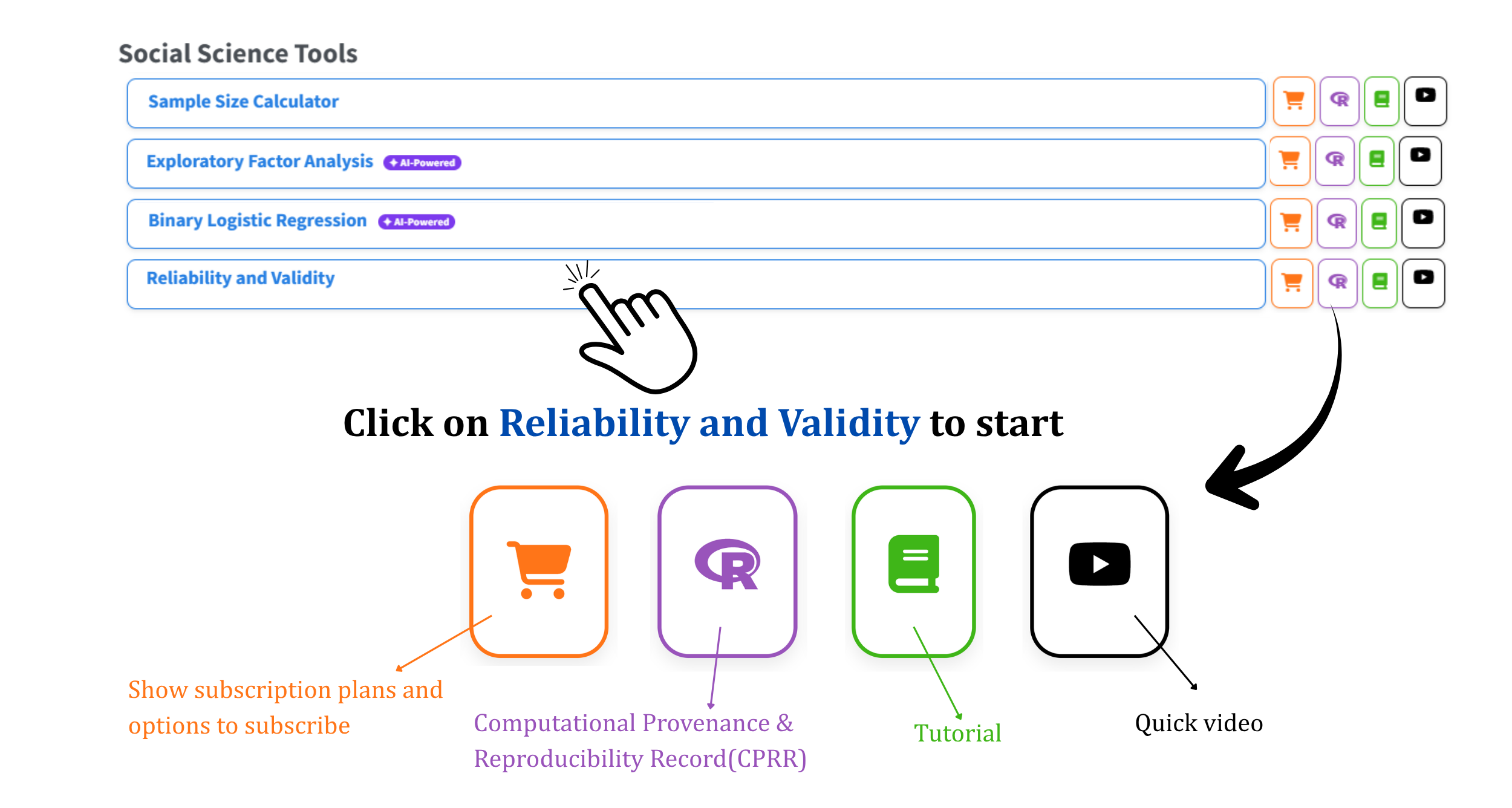
3.1 Computational Provenance & Reproducibility Record
CPRR (Computational Provenance & Reproducibility Record) provides a transparent and comprehensive record. Click on the R icon shown in Figure 1 to access CPRR and know about the computational workflow performed during the analysis. The record for this module states the R version and the exact version of every package used, and names the specific function behind each reported result, such as psych::alpha(), psych::omega(), psych::ICC(), irr::kappam.fleiss(), irr::kripp.alpha() and lavaan::cfa(). CPRR lists every default parameter and decision rule applied by the module and provides fully runnable R code that reproduces each analytical step. Users can execute the code in R to independently reproduce and verify the results. It carries its own DOI.
To cite the platform itself in a paper, thesis, or report, use the RAISINS citation, available in APA, Harvard, and BibTeX formats at www.raisins.live/citation.html. That is the primary reference, and for most manuscripts it is all you need.
The CPRR for the reliability and validity module is at www.raisins.live/module_record/relval.html.
Cite the RAISINS paper as your primary reference for the platform. Add the CPRR as supporting documentation when a journal asks for details of the computing environment, or when you want your methods section to be precise about versions and functions rather than saying “analysis was carried out using an online tool.” The CPRR supports the citation and ensures computational reproducibility.
4 Preview Mode and Quick Tour
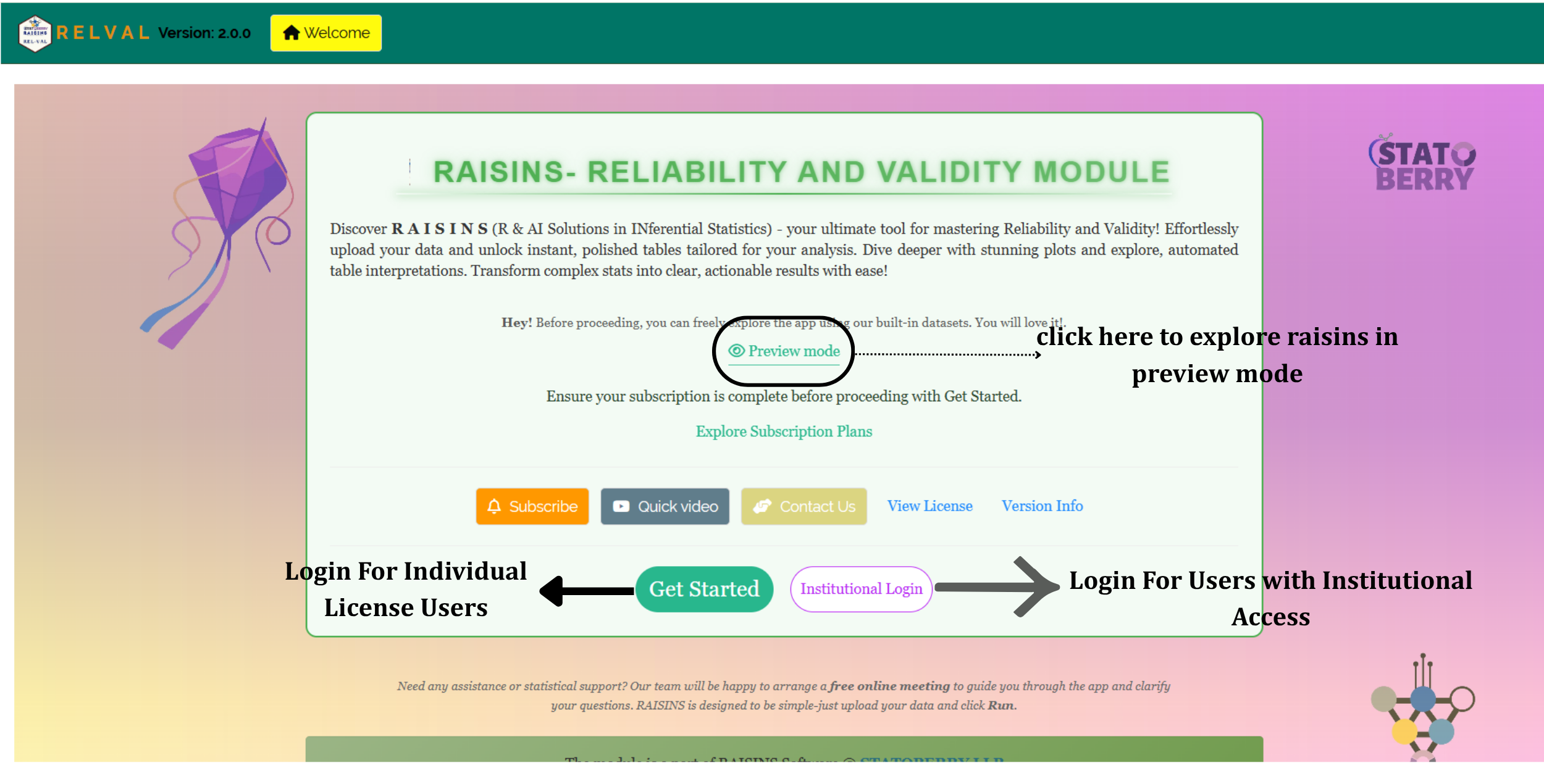
You can explore the entire module before subscribing by using Preview mode on the Welcome page. It loads built-in datasets, so you can try every feature, including all the results tabs, the plots and RA-One, without uploading your own data.
Subscribers sign in with Get Started. Users whose institution has a licence sign in with Institutional Login.
First-time users are also offered a Quick Tour. This is an interactive, step-by-step walkthrough that highlights each tab and control and explains what it does. You can replay it at any time from the Quick Tour tab in the top navigation.
5 The Example Dataset
This tutorial uses the Employee dataset, which is built into the module and available from the Datasets tab.
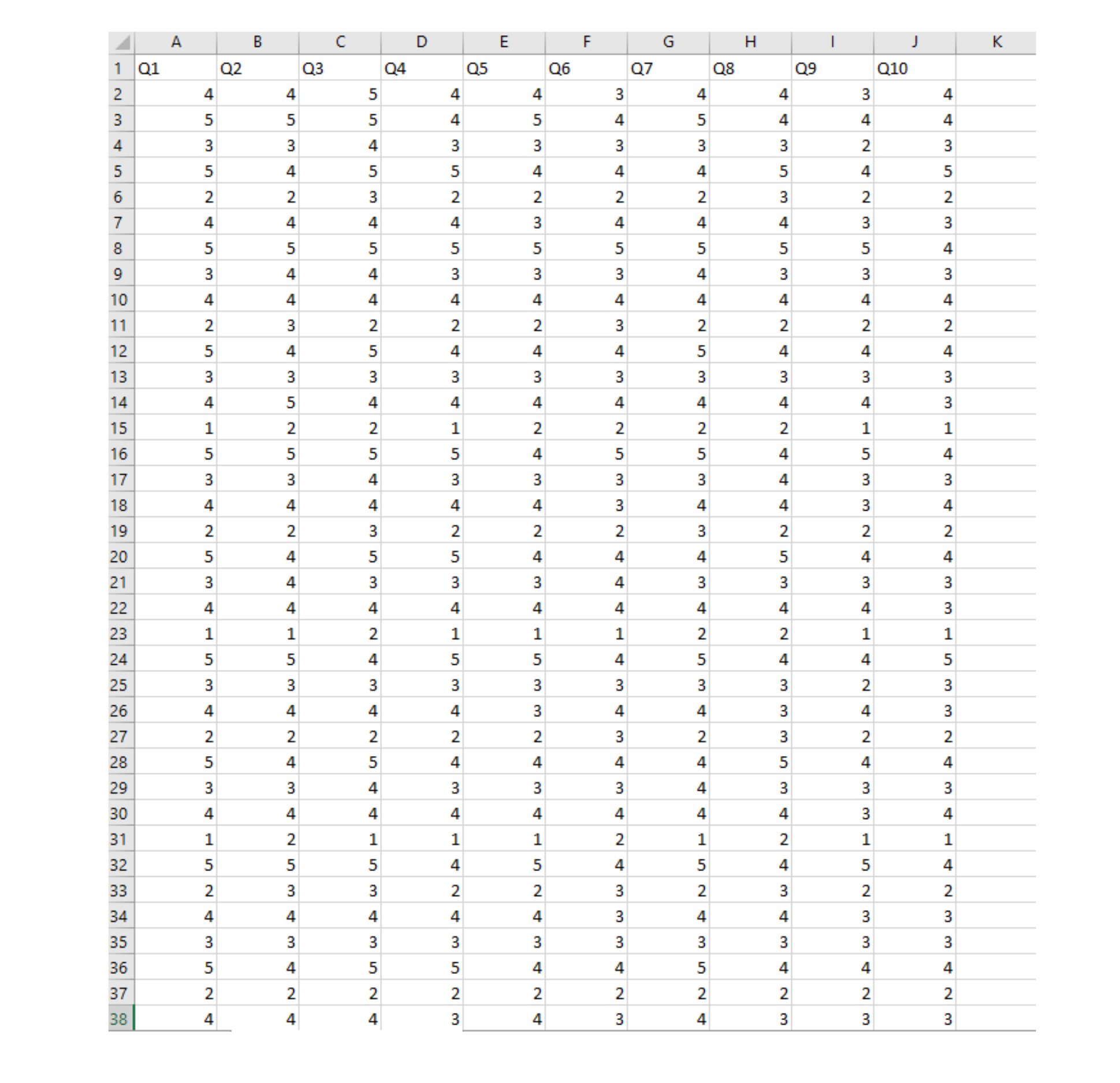
It contains the answers of 40 employees (rows) to 10 questionnaire items, Q1 to Q10 (columns). Every item is rated on a 1 to 5 scale, and all ten items are designed to measure a single construct.
The objective is to find out whether these ten items form a reliable and valid scale. The data layout is shown in Figure 3.
Every number in this tutorial comes from analysing this exact file, so you can reproduce the whole tutorial by downloading the same dataset and following the same steps.
- Prepare your dataset.
- Upload the data.
- Select the items that measure the same construct.
- Mark any reverse-scored items.
- Run the analysis.
- Examine the internal consistency results.
- Check inter-rater agreement or content validity, if your study needs them.
- Examine construct validity and the exploratory structure.
- Review the plots and interpretations.
- Export the tables, plots and reports.
The sections below walk through each of these steps in detail.
6 Preparing Your Data
The quality of your analysis depends on the quality of your data. RAISINS provides four ways to prepare a correctly formatted dataset:
- Create it in MS Excel.
- Build it inside the app using Create Data.
- Download a built-in Model dataset and use it as a reference.
- Generate it through the RA-One chat assistant.
6.1 Preparing Data in MS Excel
Open a new Excel workbook containing a single sheet. Arrange the data with one column for each item (Q1, Q2, Q3, …) and one row for each respondent. For the Inter-rater and Content Validity tabs, use one row for each rater or expert instead (Section 2).
A respondent ID or serial-number column is not required. RAISINS only reads the item columns you select.
Every item column must contain only numbers. Save the file in CSV, XLS or XLSX format. CSV is recommended because it is smaller and loads faster. Refer to Figure 3 for the required layout.
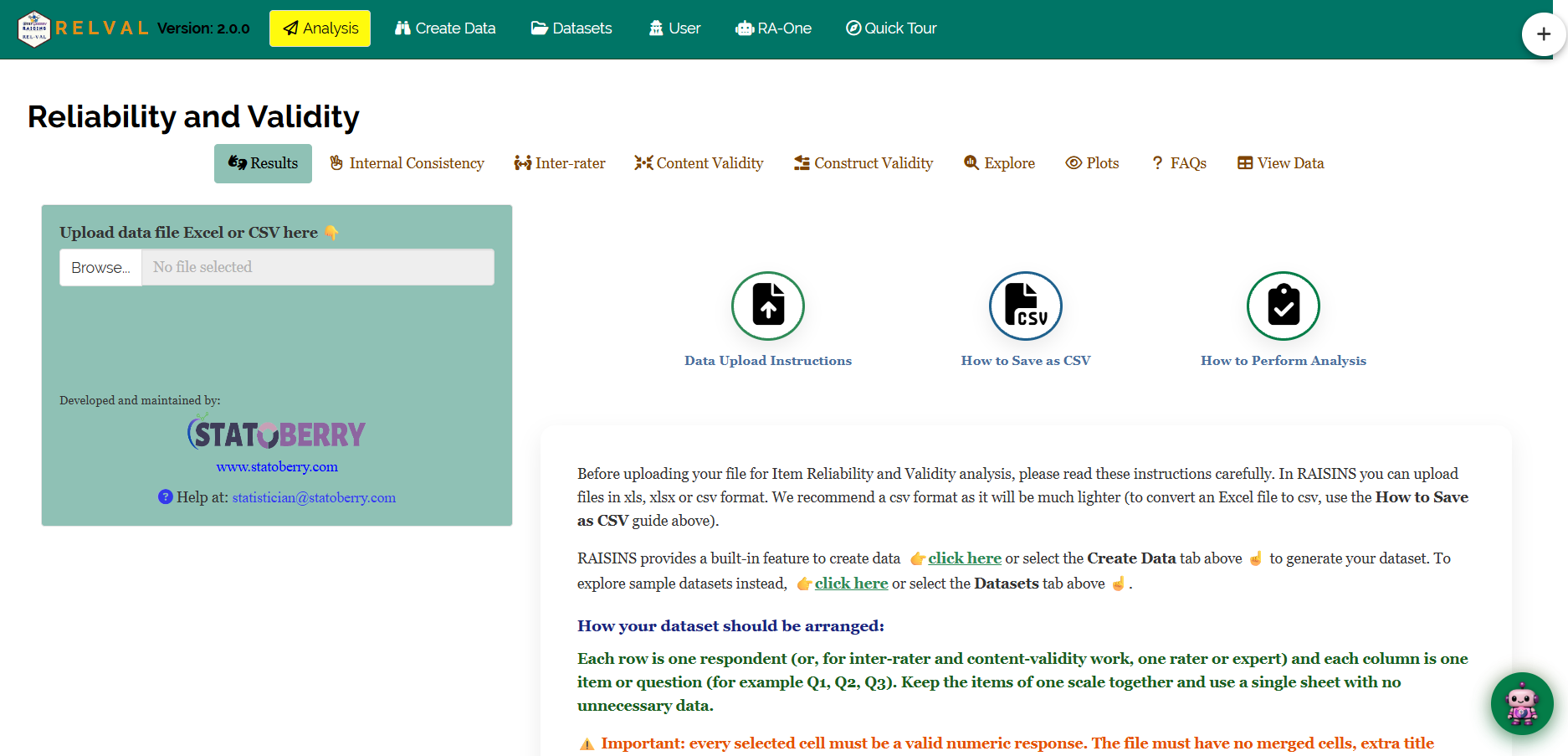
The Data Upload Instructions, How to Save as CSV and How to Perform Analysis guides on the Analysis tab (Figure 4) explain this step by step.
Dataset creation rules
- Column naming - do not use spaces. Use underscores (
_) or dots (.), and avoid symbols such as % and #. Always begin a column name with a letter. - Data arrangement - start at the upper-left corner of the sheet. The row above the data must not be blank.
- Cell management - do not type or delete in empty cells. If needed, select them, right-click, and choose Clear Contents.
- Column relevance - give every column a meaningful name, and remove columns you will not analyse.
- Numeric responses only - every selected cell must be a valid numeric response. Entries such as “NA”, ” - ” or “Agree” will cause errors. Code text responses as numbers first (for example, Strongly disagree = 1 … Strongly agree = 5).
- No merged cells or title rows - the first row must contain the column names, and the data must start directly below it.
How to save as CSV in MS Excel
- Open your workbook, with the data on a single sheet and correctly arranged.
- File → Save As / Save a Copy, then choose a location.
- Save as type → CSV (Comma delimited) (*.csv).
- Name the file without spaces. Use underscores instead.
- Save.
💡 Tip: before saving, confirm that the data is on the first and only sheet and that every item column contains only numbers.
6.2 Creating Data Inside RAISINS
If you are unsure about the required format, RAISINS can generate a template for you:
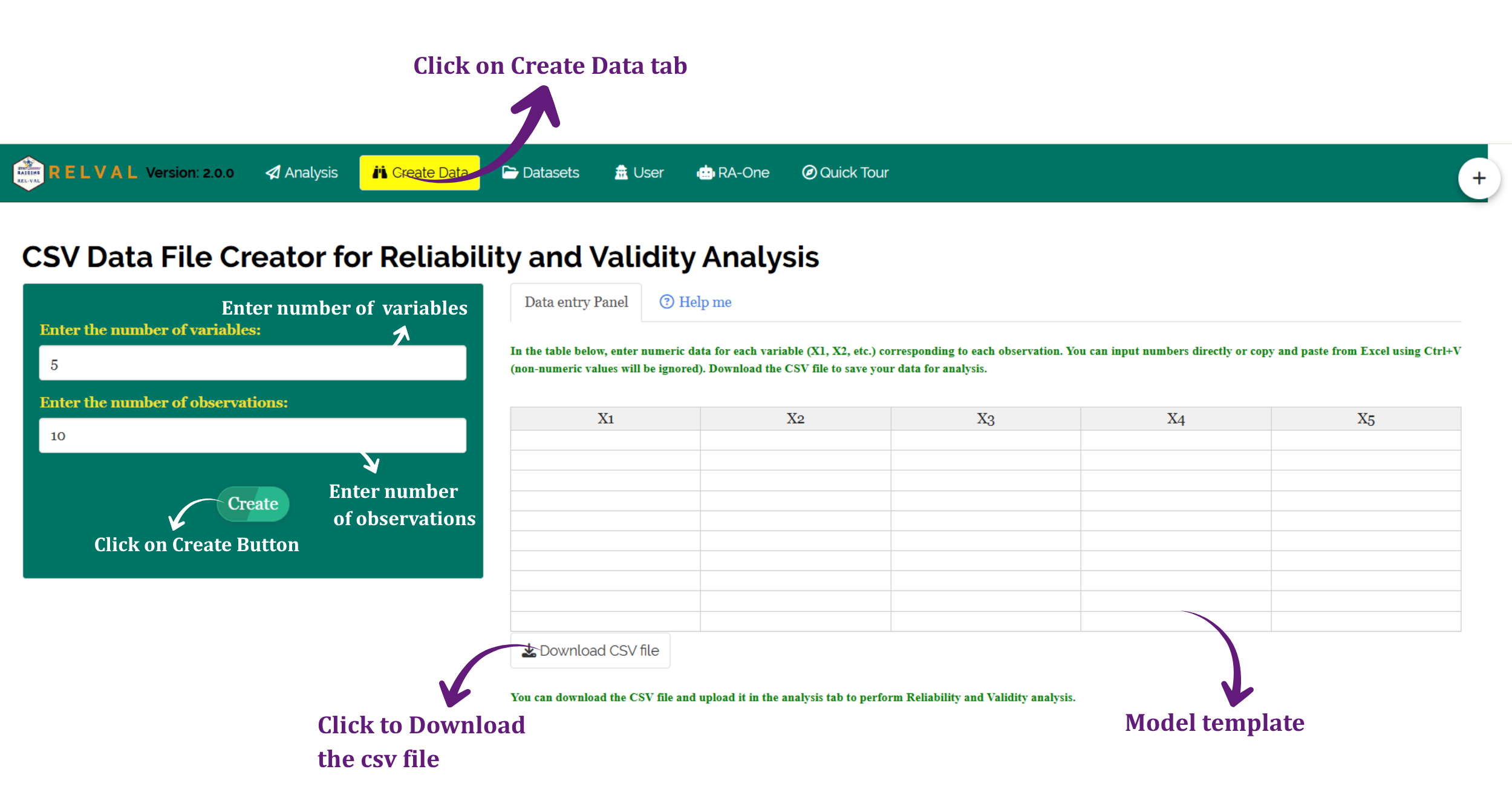
- Go to the Create Data tab.
- Enter the number of variables, which is the number of items.
- Enter the number of observations, which is the number of respondents.
- Click Create.
The generated layout is shown in Figure 5. Enter your values in the template directly, or paste them from Excel using Ctrl+V. Click Download CSV file, then upload the file in the Analysis tab.
6.3 Downloading Model Datasets
To explore the module before using your own data, download a ready-made example:
- Go to the Datasets tab.
- Click the download link for the dataset you want.
- Use it as a formatting reference, or upload it directly to run the analysis.
Three datasets are available. Employee is a clean single-construct scale, used throughout this tutorial. Students contains reverse-scored items, used in Section 8.4. Farmer has a structure with more than one factor.
6.4 Creating a Dataset Using RA-One
RA-One, the built-in chat assistant, can create a correctly formatted dataset through a simple conversation.
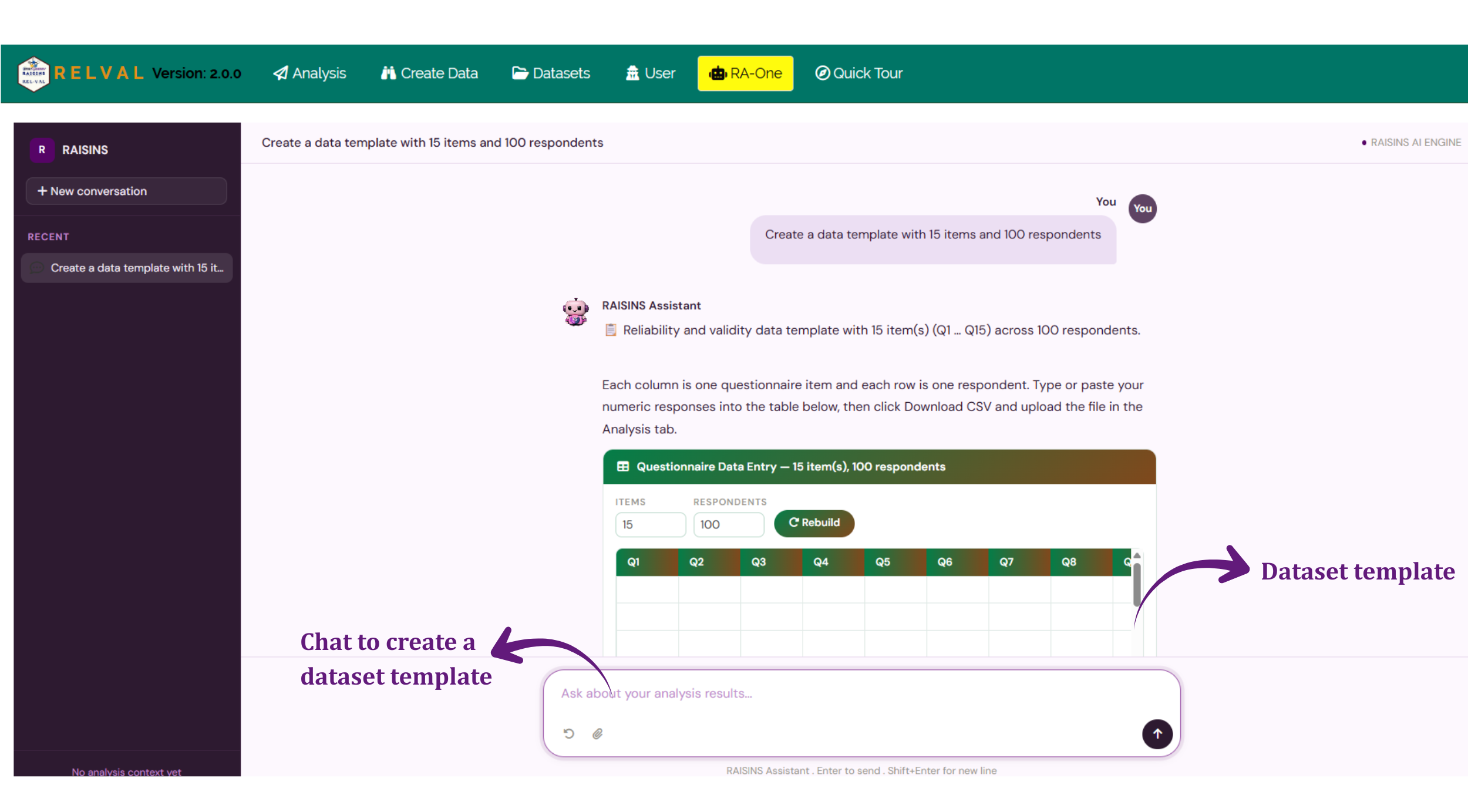
Open RA-One from its navigation tab or from the floating chat bubble. Tell it how many items and how many respondents you need, for example “Create a data template with 15 items and 100 respondents”. RA-One builds an editable template directly in the chat. You can change the numbers and click Rebuild, enter your data, download the CSV file, and upload it in the Analysis tab (Figure 6).
You can also ask RA-One for the model datasets, for example “do you have any sample data I can try?”
7 The Analysis Tab
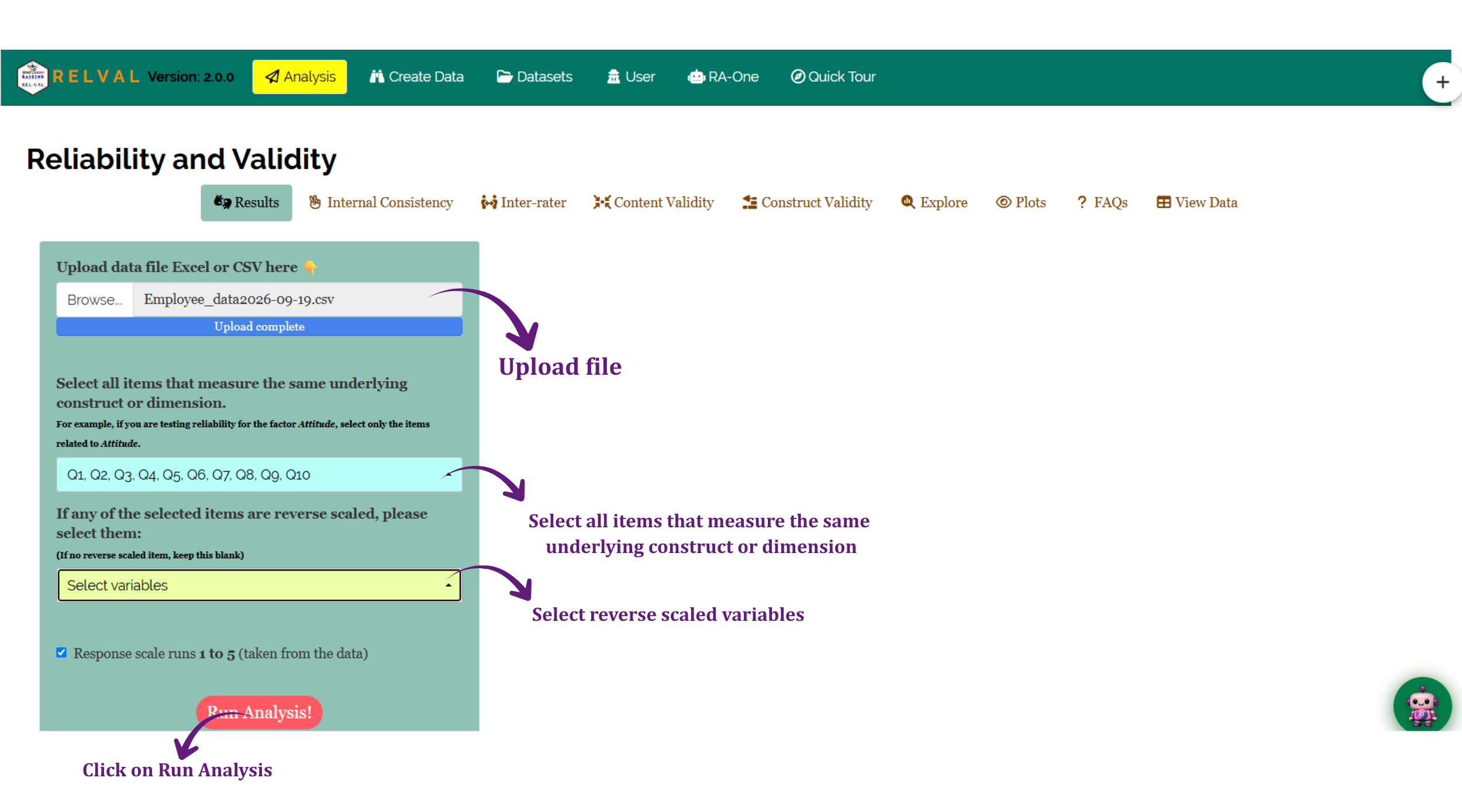
The Analysis tab is where the analysis is run (Figure 7).
Click Browse in the sidebar to upload your CSV or Excel file. Two selectors then appear:
- Select all items that measure the same underlying construct - choose only the items of one scale. For example, if you are testing the reliability of an Attitude scale, select only the Attitude items.
- Reverse-scaled items - select any negatively worded items. If there are none, leave this blank.
Below the selectors, RAISINS shows the response scale it has read from the data (for example, 1 to 5). Untick it and enter the range manually if a category was never chosen by any respondent, for example, if nobody answered 5 on a 1 to 5 scale.
Click Run Analysis!. The results appear across the sub-tabs: Results, Internal Consistency, Inter-rater, Content Validity, Construct Validity, Explore, Plots, FAQs and View Data.
For the Employee dataset, select Q1 to Q10 and leave the reverse-scaled box blank, since none of these items need reversing.
After the analysis runs, a data-notes panel summarises the upload: the number of items and respondents, the scale range used, and which items were reversed. It also shows two automatic warnings, which you should read before trusting any coefficient:
- A small-sample warning when there are fewer than five respondents per item.
- An “items still pointing the other way” warning, which names any item that still correlates negatively with the rest of the scale.
8 Internal Consistency
The Internal Consistency sub-tab reports how well the selected items agree with each other. It contains the reliability coefficients, the item statistics, the omega table and the precision of the total score.
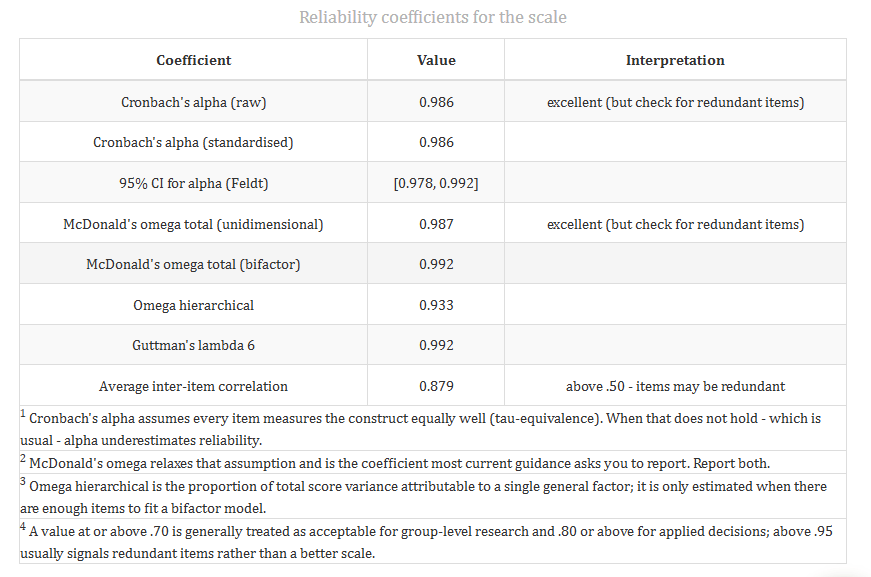
8.1 Table 1: Reliability Coefficients
Understanding the reliability table
| Coefficient | Meaning |
|---|---|
| Cronbach’s alpha (raw) | Alpha calculated from the item scores as entered. This is the value usually reported |
| Cronbach’s alpha (standardised) | Alpha calculated as if every item had the same variance |
| 95% CI for alpha (Feldt) | The range within which the true alpha is likely to lie, with 95% confidence |
| McDonald’s omega total (unidimensional) | Reliability from a one-factor model, weighting items by their loadings |
| McDonald’s omega total (bifactor) | Reliability from a model with a general factor and group factors |
| Omega hierarchical | The share of total-score variance due to the single general factor |
| Guttman’s lambda 6 | A lower bound for reliability, based on how well each item is predicted by the others |
| Average inter-item correlation | The mean correlation between pairs of items. Values between 0.15 and 0.50 are usually recommended |
Interpretation of Figure 8
For the Employee dataset, Cronbach’s alpha is 0.986, with a 95% confidence interval of [0.978, 0.992]. McDonald’s omega is 0.987, which is almost the same as alpha. This is expected when all ten items are strongly related to one factor.
Guttman’s lambda 6 is 0.992, and the average inter-item correlation is 0.879.
By the table in Section 1.1, the scale is excellent. However, alpha is above 0.95 and the average inter-item correlation is well above 0.50. RAISINS therefore adds the note “check for redundant items”. The ten items are very similar to each other, and a shorter scale might measure the same thing just as well.
8.2 Item-Total Correlation and Alpha if Item Dropped
For every item, RAISINS reports the corrected item-total correlation, the alpha if that item were dropped, and the change in alpha. A positive change means the scale would be more consistent without that item.
Interpretation
The item-total correlations range from 0.880 (Q8) to 0.984 (Q1). Every item is well above the 0.50 threshold for a strong item.
The largest change in alpha is +0.00005, for Q8. This is far too small to matter. No single item is lowering the reliability of the scale.
8.3 Precision of the Total Score
The Precision table converts reliability into the units of the total score. The standard error of measurement (SEM) shows how far a respondent’s observed total is likely to be from their true score:
\[SEM = SD \times \sqrt{1 - \alpha}\]
To compare two respondents, use the critical difference. Both scores contain error, so the difference between them must be larger:
\[\text{Critical difference} = 1.96 \times \sqrt{2} \times SEM\]
Interpretation
The total score has a mean of 33.53 and a standard deviation of 10.42. With alpha at 0.986, the SEM is \(10.42 \times \sqrt{1 - 0.986} = 1.24\) points.
The critical difference is \(1.96 \times \sqrt{2} \times 1.24 = 3.45\) points. Two employees’ totals must differ by at least 3.45 points before you can say, with 95% confidence, that their satisfaction really differs.
The Feldt interval shown by default assumes that all items measure the construct equally well and are normally distributed. Likert data rarely satisfies either assumption.
Tick the bootstrap confidence interval option to add an interval that does not need these assumptions. It is useful when alpha is close to a decision boundary, such as 0.70. The bootstrap uses a fixed random seed, so the same data always gives the same interval.
8.4 Worked Example: Reverse-Scored Items
The Employee items do not need reversing. To see the effect of reverse-scored items, upload the Students dataset instead. It has 15 items and 30 respondents on a 1 to 5 scale, and items Q6 to Q10 are negatively worded.
- Select all fifteen items without marking any as reverse-scaled, and run the analysis. Alpha is 0.351, which is unacceptable. The data-notes panel warns that
Q6toQ10still point the other way. - Add
Q6toQ10to the reverse-scaled items box, and run the analysis again. Alpha rises to 0.972, and omega to 0.973.
The items and respondents are exactly the same. The only change is that five items are now reversed before scoring.
Forgetting to reverse a negatively worded item does not just lower alpha a little. It can make an excellent scale look unusable.
Always read every item before selecting the scale, and mark each negatively worded item. If RAISINS warns that an item still points the other way, check that item before reporting any result.
9 Inter-rater Reliability
The Inter-rater sub-tab measures how well independent raters agree with each other, for example, several judges scoring the same set of essays, images or specimens.
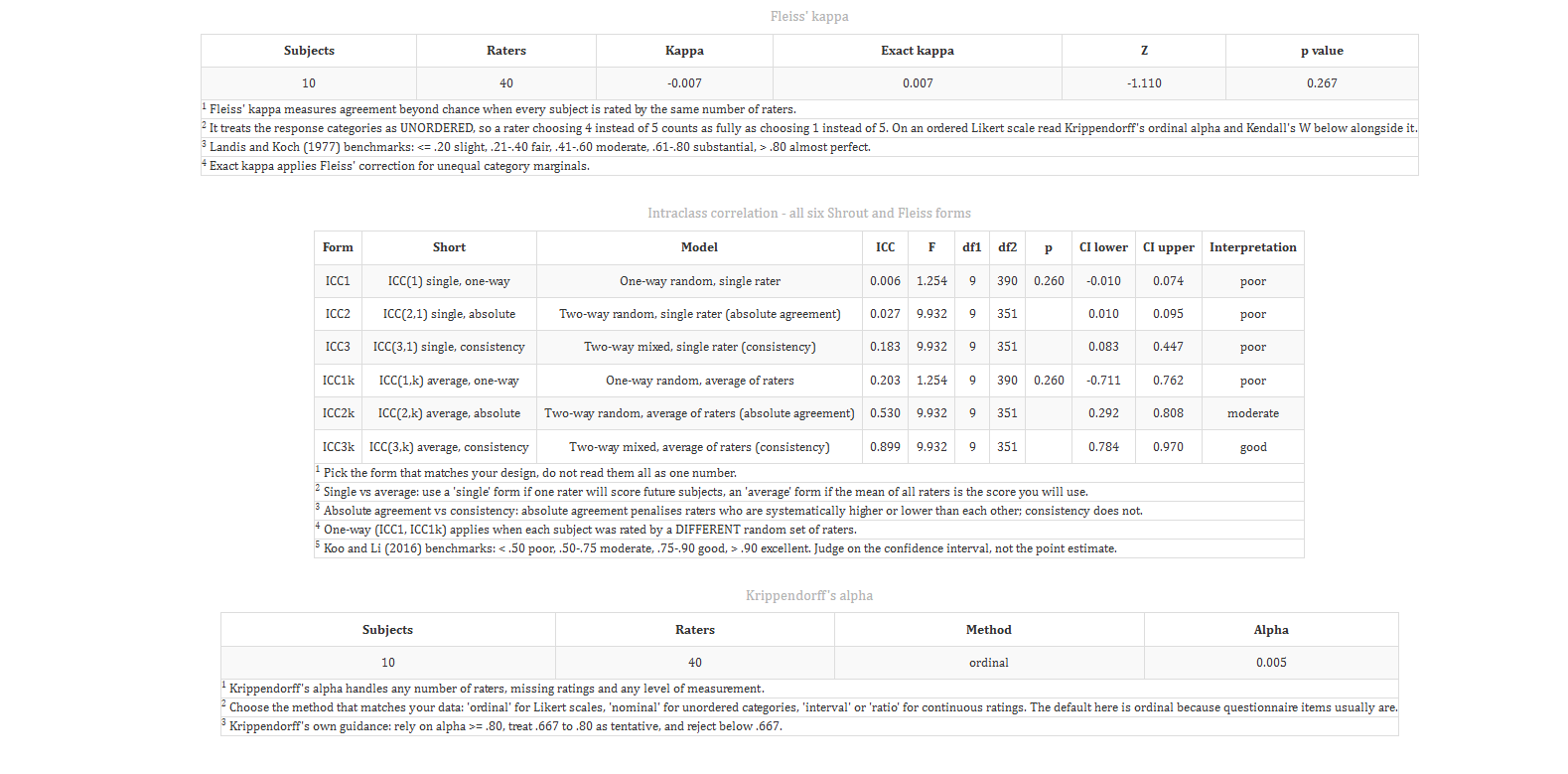
Here each row is read as a rater, and each selected column as a subject being rated (Section 2). RAISINS reports three families of agreement coefficients:
- Fleiss’ kappa - agreement beyond chance, treating the rating categories as unordered.
- Intraclass correlation (ICC) - all six Shrout and Fleiss forms.
- Krippendorff’s alpha - handles any number of raters, missing ratings, and any level of measurement. The default method is ordinal, which suits Likert scales.
Understanding the ICC forms
| Form | Use it when |
|---|---|
| ICC1 (one-way random) | Each subject was rated by a different random set of raters |
| ICC2 (two-way random, absolute agreement) | The same raters rated every subject, and a rater’s score must match another rater’s score exactly |
| ICC3 (two-way mixed, consistency) | The same raters rated every subject, and only the ranking of subjects matters |
| Single (ICC1, ICC2, ICC3) | One rater will score future subjects |
| Average (ICC1k, ICC2k, ICC3k) | The mean of all raters is the score you will use |
Koo and Li (2016) benchmarks: below 0.50 poor, 0.50 to 0.75 moderate, 0.75 to 0.90 good, above 0.90 excellent. Judge on the confidence interval, not only the point estimate.
Interpretation of Figure 9
With the Employee dataset, the same 40 × 10 file is now read as 40 raters scoring 10 subjects.
Fleiss’ kappa is -0.007 (p = 0.267), ICC(2,1) is 0.027, and Krippendorff’s alpha is 0.005. All three are close to zero, which means there is no more agreement than chance.
These values are not errors. The Employee file contains survey answers, not the judgements of a rater panel. Forty employees who never rated anything in common should not agree, and the coefficients correctly report this. When you use this tab on genuine rater data, expect much higher agreement.
Note also that ICC(2,1) = 0.027 (absolute agreement) is lower than ICC(3,1) = 0.183 (consistency). This pattern is common when raters use the scale differently, even if they rank the subjects in a similar order. The average forms are higher (ICC2k = 0.530, ICC3k = 0.899) because averaging many raters cancels out individual differences.
Choose the ICC form that matches your study design before looking at the results. Do not pick the form that gives the highest value.
Use an absolute agreement form when a future rater’s score must match another rater’s exactly. Use a consistency form when only the ranking of subjects matters.
10 Content Validity
Content validity asks whether a panel of experts agrees that each item is relevant to the construct. Each row is read as an expert, and each column as an item being judged.
You choose which rating(s) count as essential. For each item, RAISINS then calculates Lawshe’s content validity ratio (CVR):
\[CVR = \frac{n_e - N/2}{N/2}\]
where \(n_e\) is the number of experts who rated the item essential and \(N\) is the total number of experts. CVR ranges from -1 (no expert rated it essential) to +1 (every expert did).
RAISINS also reports the item-level content validity index (I-CVI) and two scale-level indices:
- S-CVI/Ave - the mean I-CVI across all items. A value of 0.90 or above is excellent, and 0.80 is the usual minimum.
- S-CVI/UA - the proportion of items that every expert rated essential. This is a much stricter criterion.
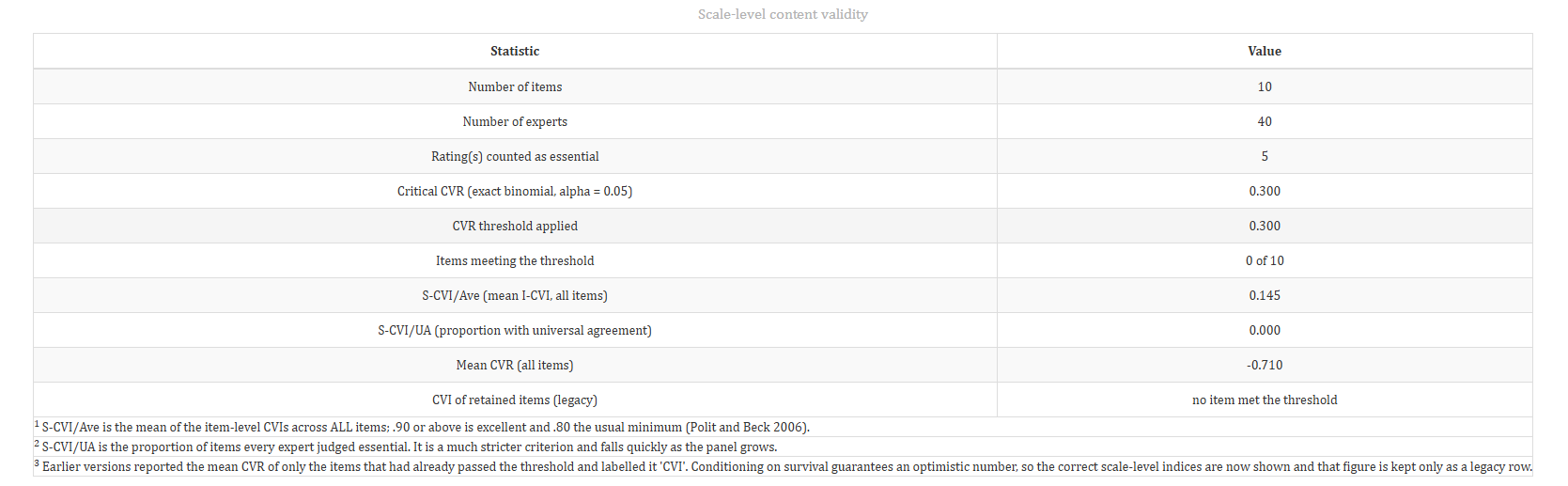
Interpretation of Figure 10
With the Employee dataset read as 40 experts judging 10 items, and only a rating of 5 counted as essential, the critical CVR is 0.300.
None of the 10 items reach this threshold. The mean CVR is -0.710, the S-CVI/Ave is 0.145, and the S-CVI/UA is 0.000.
As in Section 9, this is an honest result on the wrong kind of data. The Employee file contains survey answers, and most employees did not give a rating of 5. In your own study, run this tab on your expert panel’s actual relevance ratings, commonly recorded on a 3-point not necessary / useful / essential scale.
Many older references quote a single critical CVR, such as 0.78, for every study. That value only applies to one specific panel size.
RAISINS calculates the critical CVR exactly from the binomial distribution, for the actual number of experts in your file. A panel of 6 experts and a panel of 40 experts do not need to clear the same bar. The CPRR shows how the critical value is calculated.
If your supervisor or target journal requires a fixed cut-off, untick Use the exact critical CVR and enter your own value. Changing the threshold only changes the Retain / Review decisions. CVR, I-CVI and the p-values are calculated from the ratings alone and do not change.
11 Construct Validity
Construct validity asks whether the items actually measure the construct that the theory predicts. The Construct Validity sub-tab fits a confirmatory factor analysis (CFA) model, in which all the selected items load on one factor. RAISINS uses robust maximum likelihood (MLR), which is suitable for Likert data.
It reports two tables: the model fit indices and the convergent validity statistics.
Understanding the fit and validity statistics
| Statistic | Meaning | Benchmark |
|---|---|---|
| Chi-square / df | The overall misfit, scaled by degrees of freedom | < 3 |
| CFI | Comparative fit index | ≥ 0.95 good, ≥ 0.90 acceptable |
| TLI | Tucker-Lewis index | ≥ 0.95 good, ≥ 0.90 acceptable |
| RMSEA | Root mean square error of approximation | ≤ 0.06 good, ≤ 0.08 acceptable |
| SRMR | Standardised root mean square residual | ≤ 0.08 acceptable |
| AVE | Average variance extracted: the mean squared standardised loading | ≥ 0.50 |
| CR | Composite reliability of the factor | ≥ 0.70 |
AVE and CR are calculated from the standardised loadings (\(\lambda_i\)) of the \(k\) items:
\[AVE = \frac{\sum_i \lambda_i^2}{k} \qquad CR = \frac{\left(\sum_i \lambda_i\right)^2}{\left(\sum_i \lambda_i\right)^2 + \sum_i \left(1 - \lambda_i^2\right)}\]
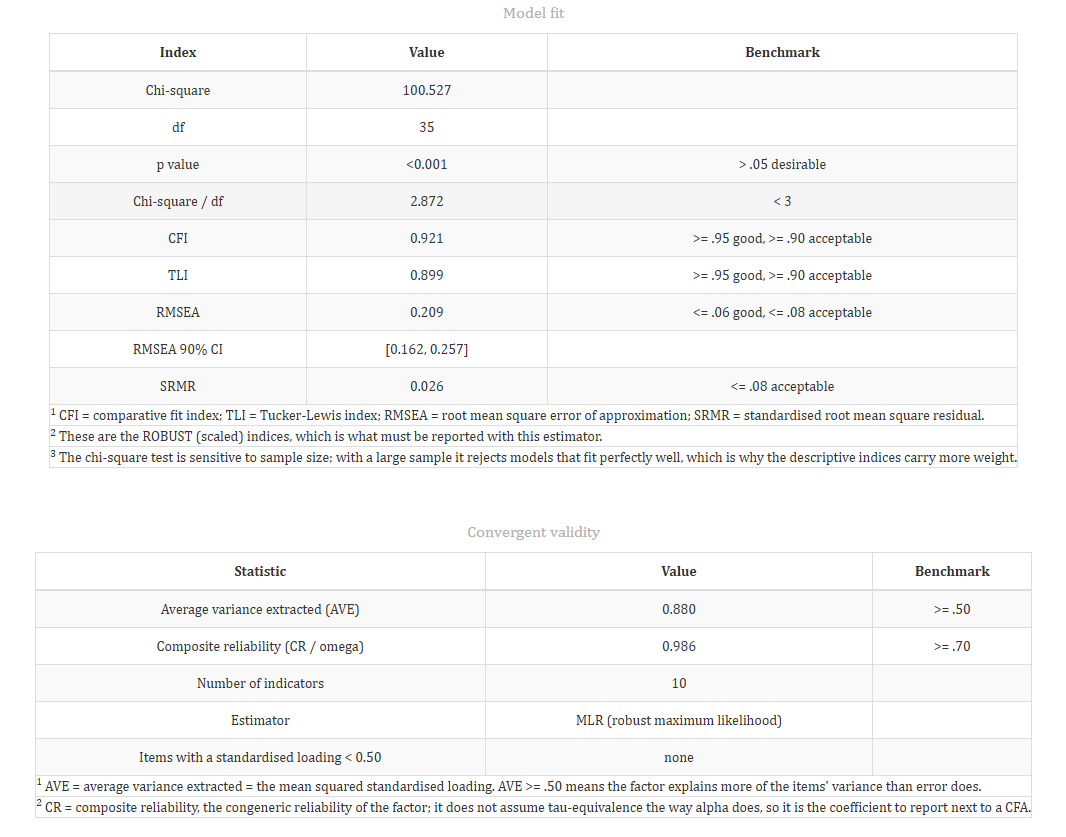
Interpretation of Figure 11
For the Employee dataset, the model gives χ²(35) = 100.53, p < 0.001, and χ²/df = 2.87. The fit indices are CFI = 0.921, TLI = 0.899, RMSEA = 0.209 (90% CI 0.162 to 0.257) and SRMR = 0.026.
Convergent validity is excellent. AVE is 0.880 and CR is 0.986, both well above their benchmarks. No item has a standardised loading below 0.50.
However, RMSEA is far above the 0.08 cut-off, and TLI is just below 0.90. RAISINS therefore gives the overall fit verdict as “Poor”.
RMSEA is known to be inflated in models with few degrees of freedom and a small sample, even when the other indicators are strong (Kenny, Kaniskan & McCoach, 2015). This example is a real case of that pattern: excellent reliability, excellent AVE and CR, a good SRMR, yet a very high RMSEA.
The lesson is not that the scale is unusable. It is that no single coefficient settles a validity question. Report the full set of indices together, and interpret an unusual value in that context.
Also check that the model converged to a proper solution. A negative residual variance or a standardised loading above 1 (a Heywood case) makes every fit index unreportable. RAISINS detects this and marks the solution accordingly.
12 Explore: Factor Structure
The Explore sub-tab checks whether the items are suitable for factor analysis, and then finds how many factors they actually form.
Two checks come first:
- Kaiser-Meyer-Olkin (KMO) - measures how much of the shared variance among the items may be common variance. A value of 0.60 is the usual minimum, and 0.80 or above is good.
- Bartlett’s test of sphericity - tests whether the correlation matrix differs from an identity matrix. It must be significant; otherwise there is nothing to factor.
RAISINS then uses parallel analysis to decide how many factors to keep, and reports the loadings and communalities of the exploratory solution. The full inter-item correlation matrix, with significance stars, is also shown and can be exported as CSV, Excel or PDF.
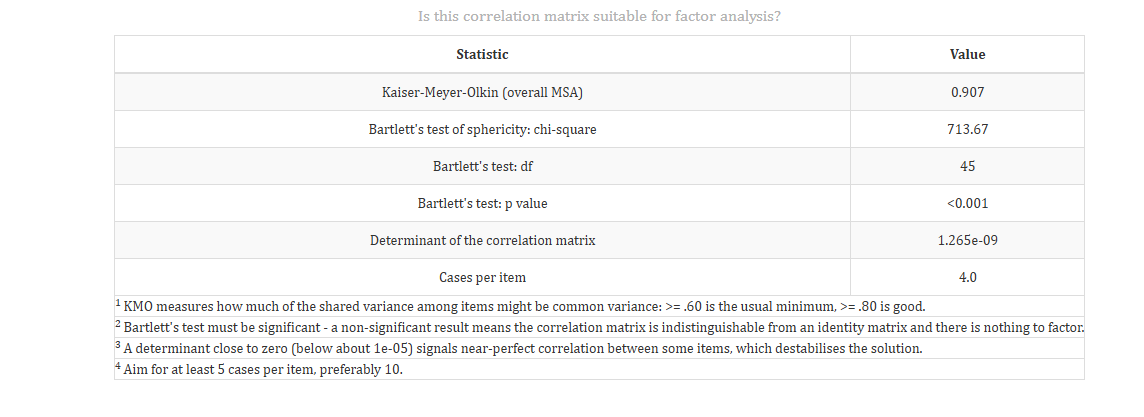
Interpretation of Figure 12
For the Employee dataset, KMO is 0.907 and Bartlett’s test gives χ²(45) = 713.67, p < 0.001. Both checks strongly support factor analysis.
The determinant of the correlation matrix is 1.265 × 10⁻⁹, well below 10⁻⁵. This shows that some items are almost perfectly correlated, which agrees with the redundancy note in Section 8.
There are 4.0 cases per item, below the recommended minimum of 5. Results from a larger sample would be more stable.
Parallel analysis retains one factor, which matches the single construct the items were designed to measure. The loadings range from 0.885 (Q8) to 0.992 (Q1).
Rotation is only meaningful when there are two or more factors. With a single factor there is nothing to rotate, so every rotation method gives identical loadings.
When parallel analysis keeps one factor, RAISINS reports rotation: none and greys out the menu. Enter 2 or more in Factors to extract, and the menu becomes active again.
13 Plots and Graphs
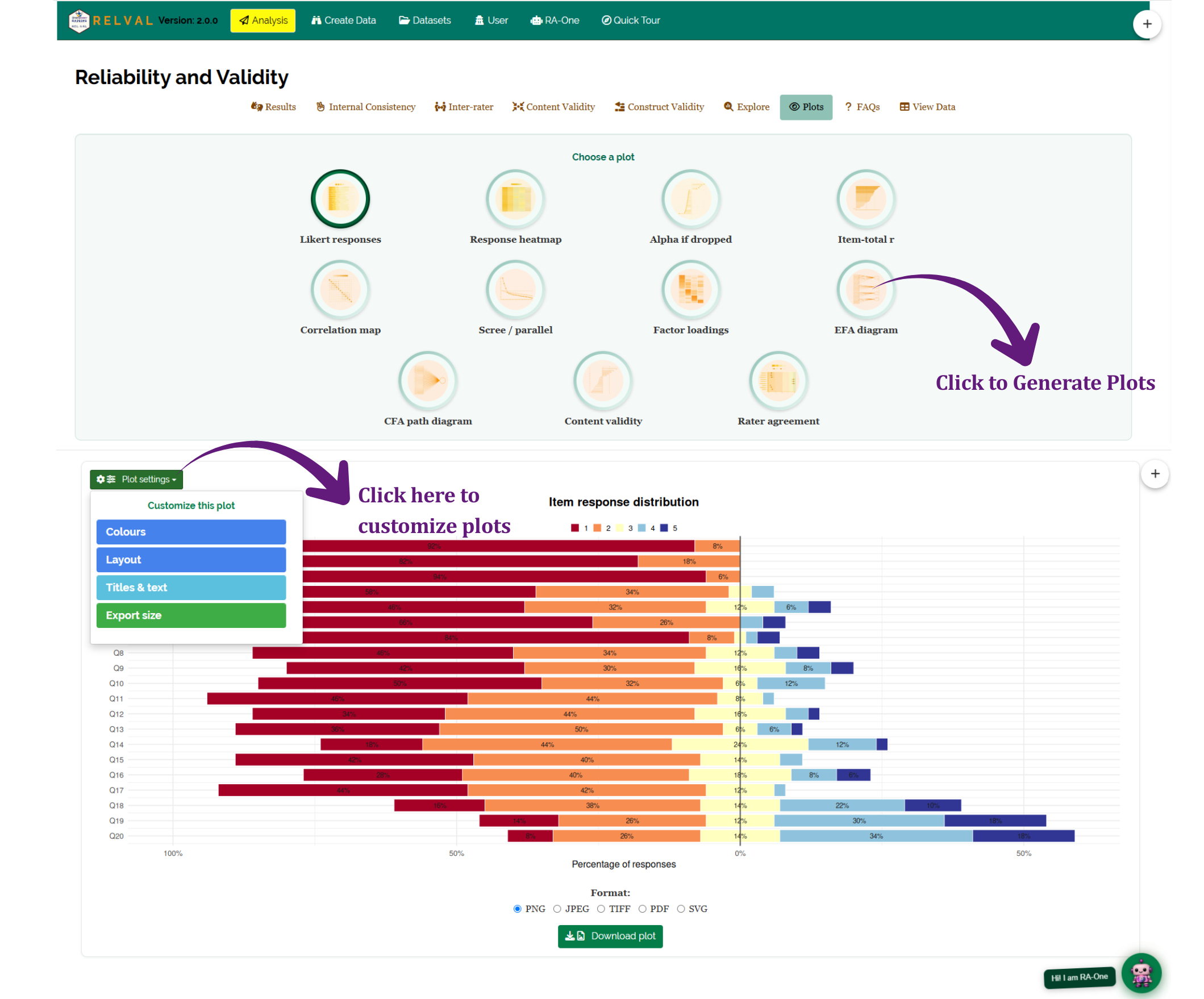
The Plots tab contains eleven visualizations. Select a plot using the row of icon buttons under Choose a plot. The selected plot appears below, with a Plot settings button in the corner for customization (Figure 13).
The settings are grouped into Colours, Layout, Titles & text and Export size. Every plot can be downloaded in PNG, JPEG, TIFF, PDF or SVG format. Under Export size, leave width and height blank to download the plot with the same shape as on screen, or enter your own size in inches and choose the DPI.
Hover over any thumbnail below to see what it displays. All plots are shown for the Employee dataset.
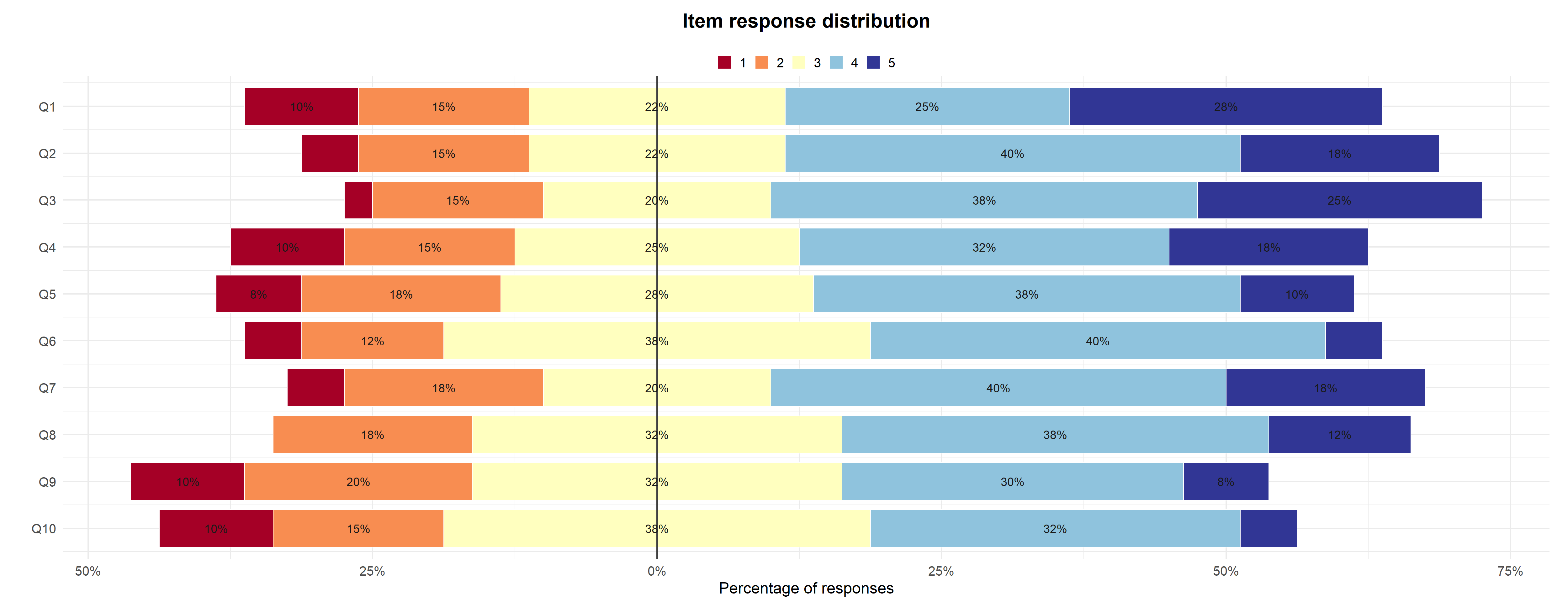
Likert responses. A diverging bar chart showing the percentage of respondents choosing each response category, for every item. It shows at a glance which items attract agreement or disagreement.
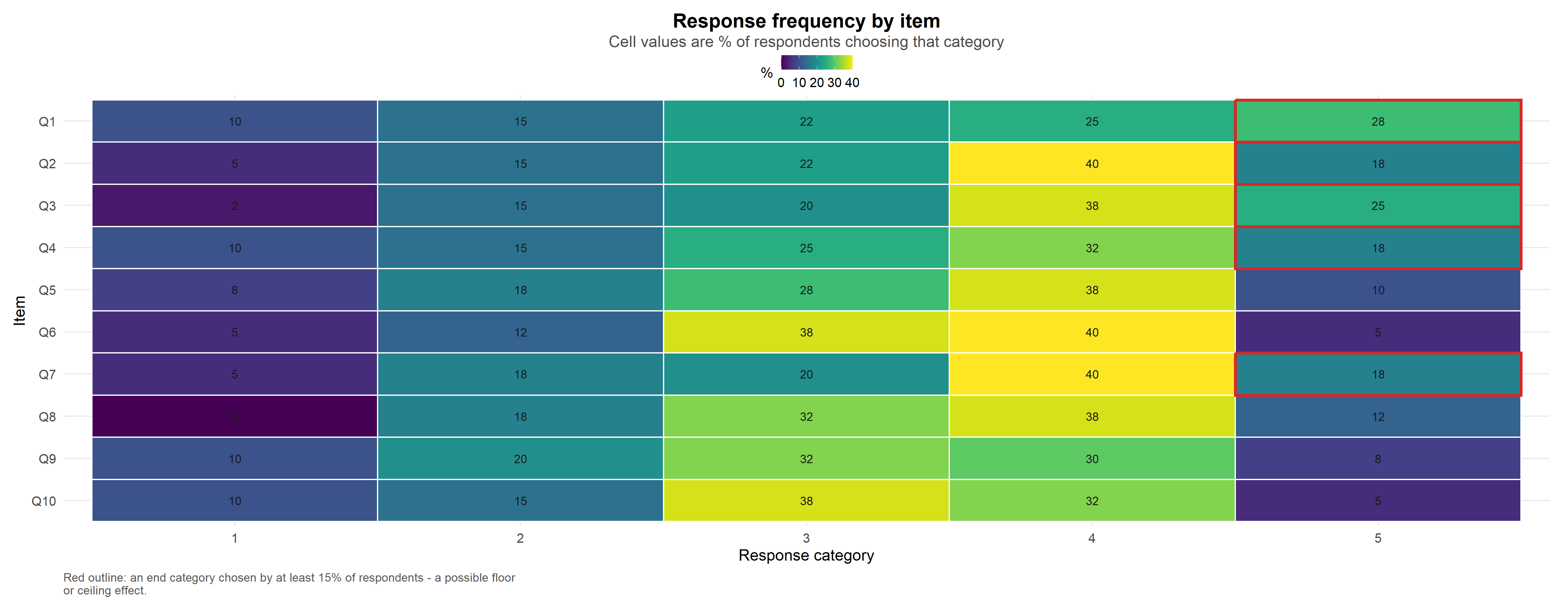
Response heatmap. The frequency of each response category for every item, as a colour grid. Useful for spotting unused categories and floor or ceiling effects.
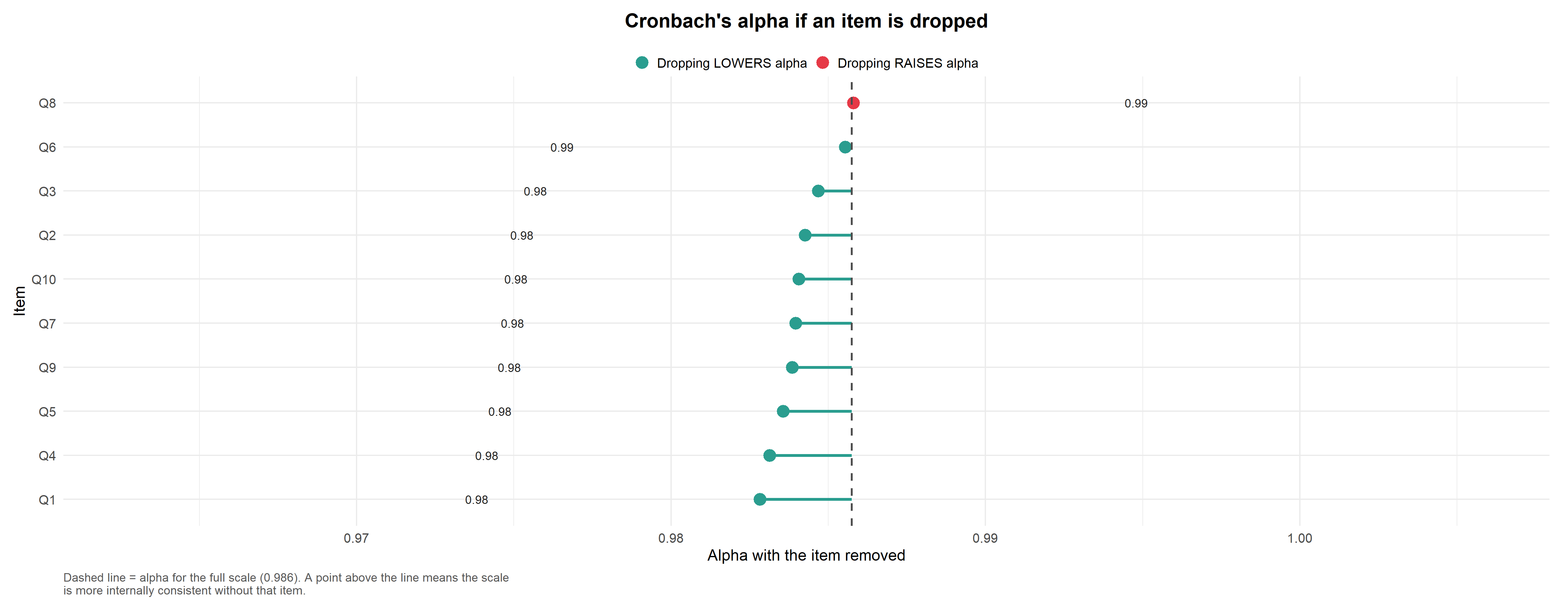
Alpha if item dropped. The alpha the scale would have without each item, compared with the current alpha. Items whose removal would raise alpha stand out.
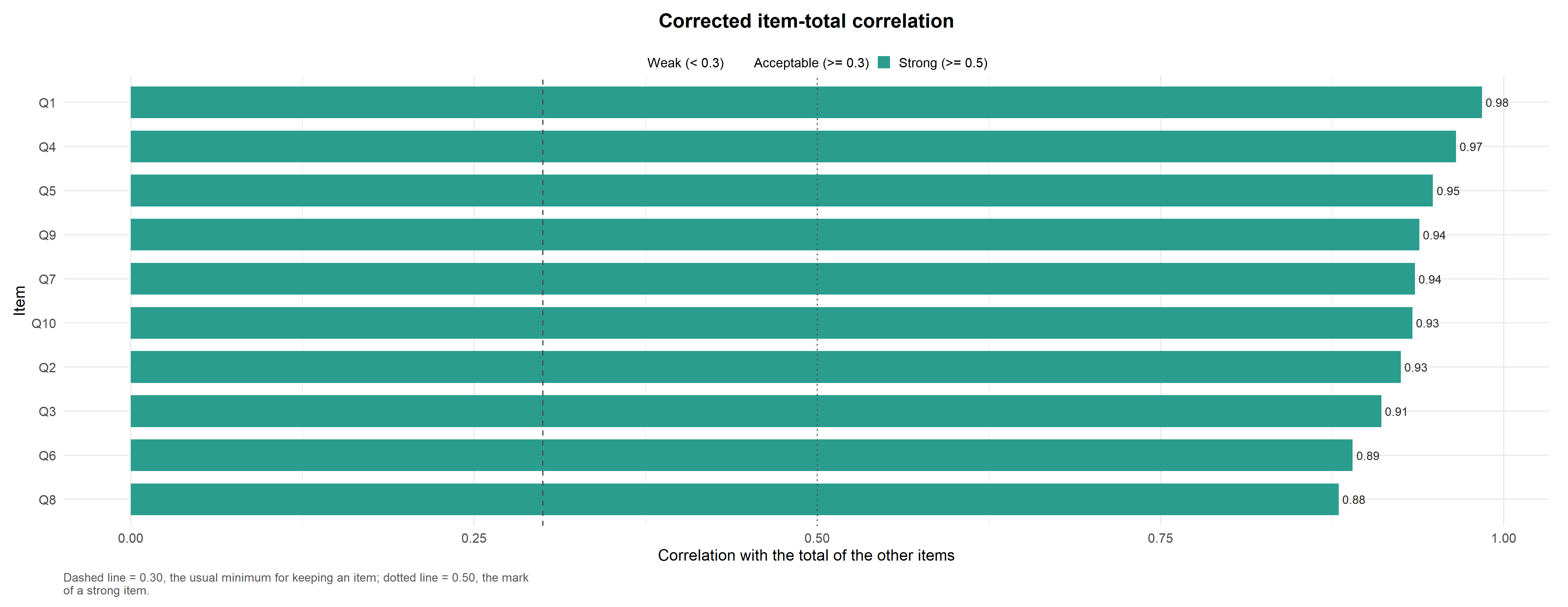
Item-total r. The corrected item-total correlation of every item, with reference lines at 0.30 and 0.50. Weak items fall below the lines.
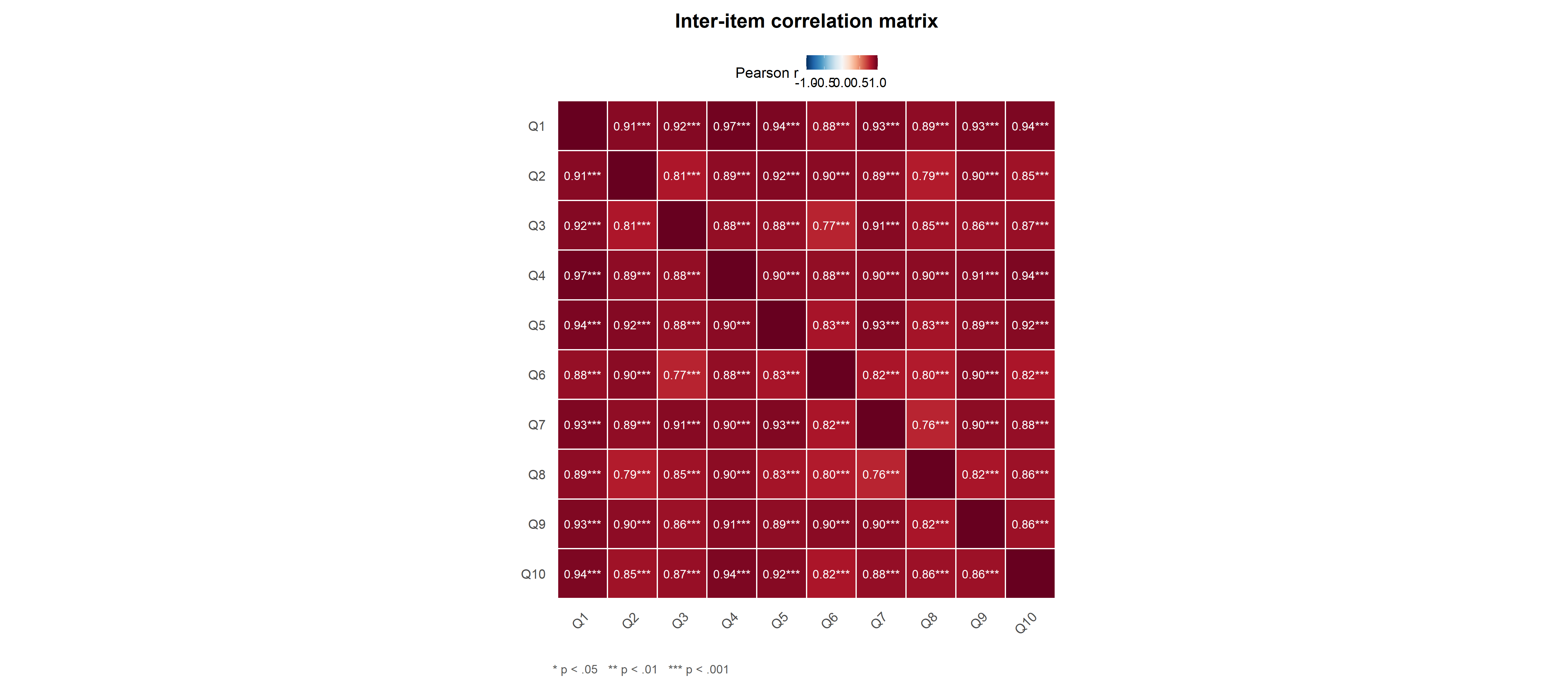
Correlation map. The inter-item correlation matrix as a heatmap. Very high correlations suggest redundant items; negative correlations suggest an item that needs reversing.
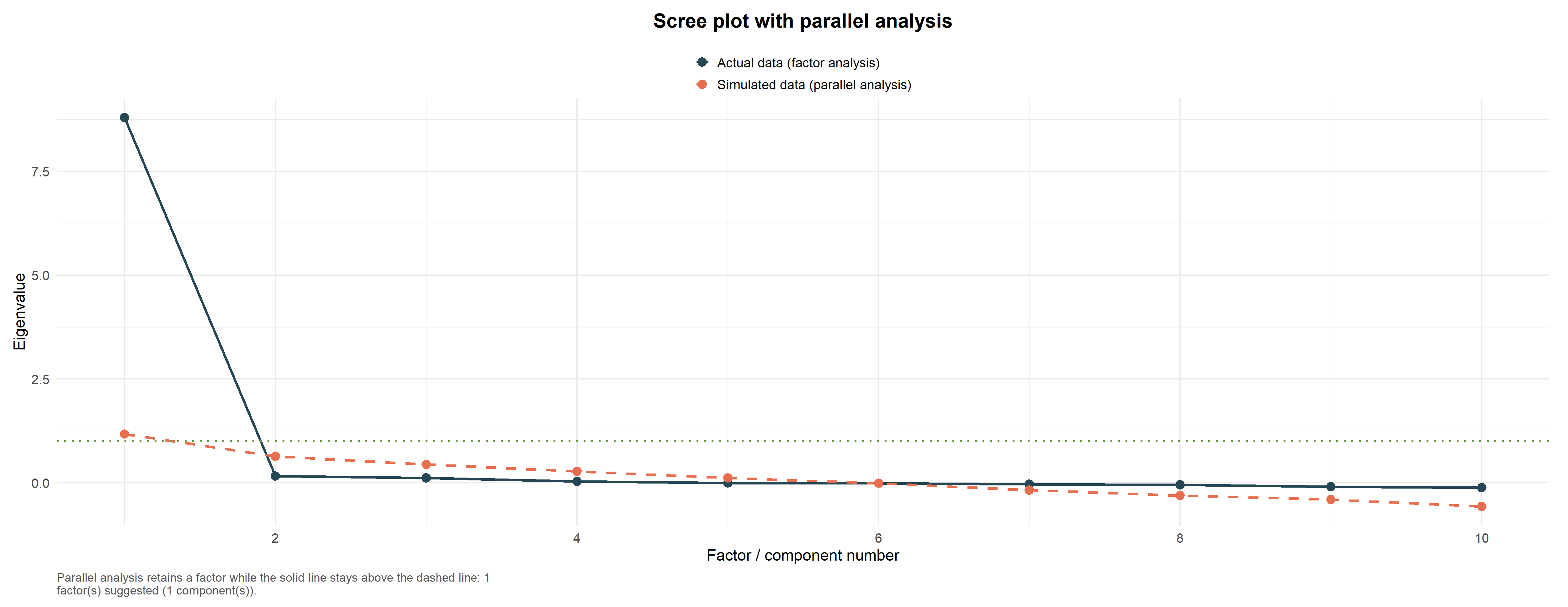
Scree / parallel. The eigenvalues of the data compared with those of random data. Factors above the random line are worth keeping.
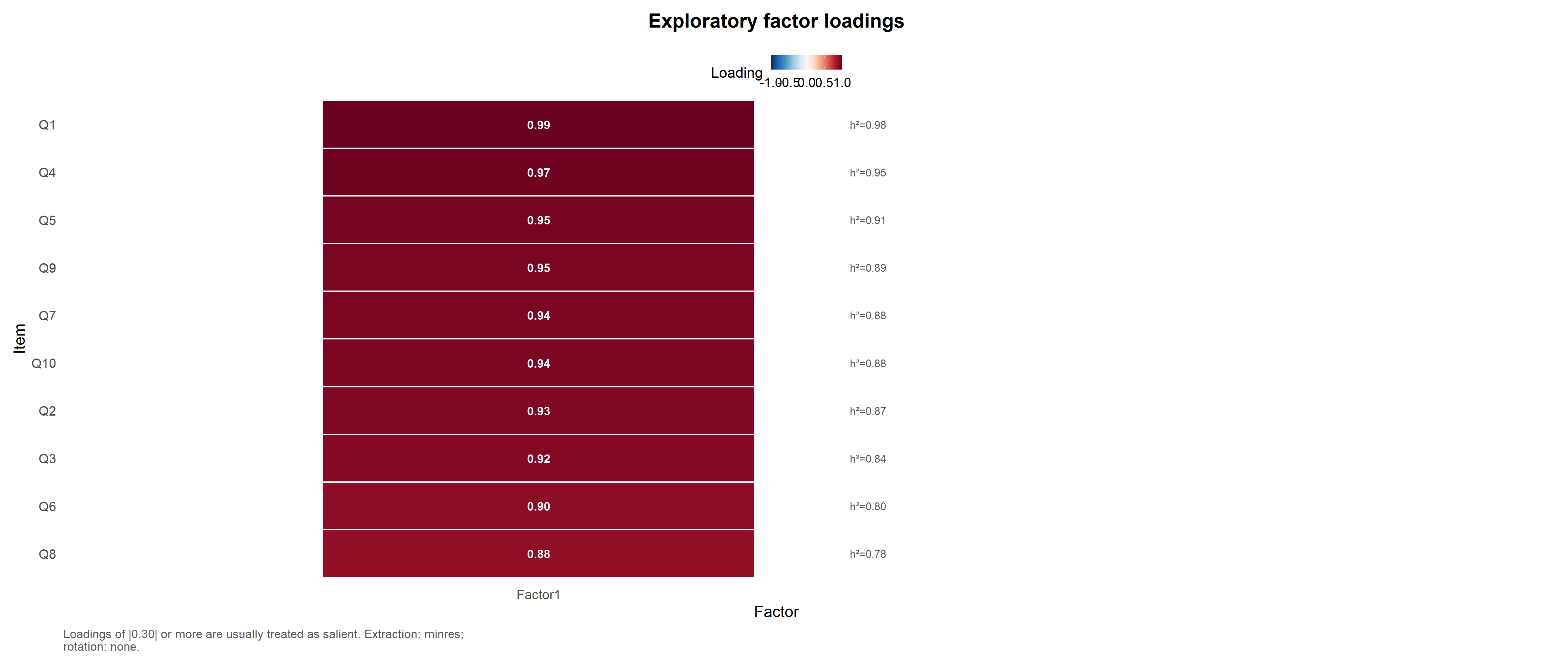
Factor loadings. A heatmap of the exploratory loadings of every item on every factor. Strong loadings show which items belong to which factor.
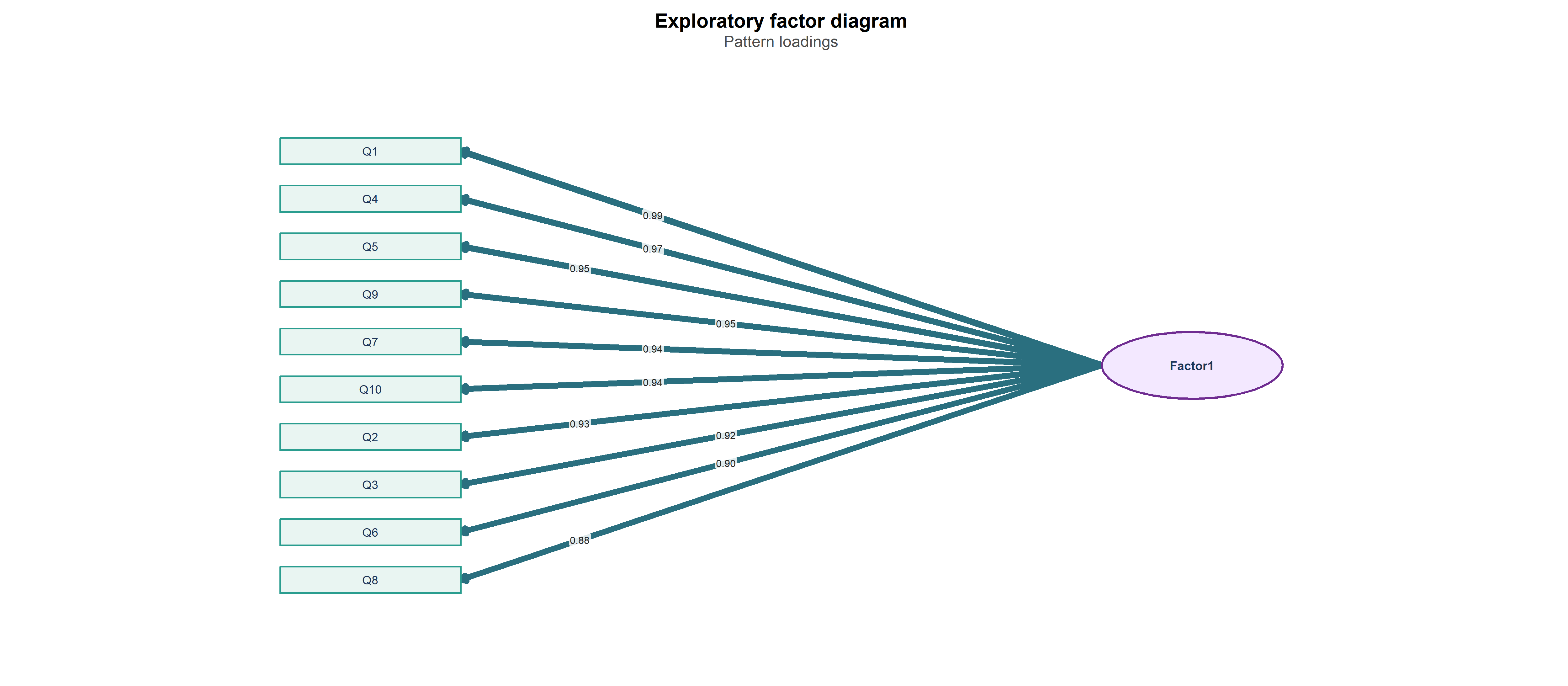
EFA diagram. Items drawn as boxes and factors as ellipses, with arrows scaled to loading size. With an oblique rotation and two or more factors, dashed arcs show the factor correlations.
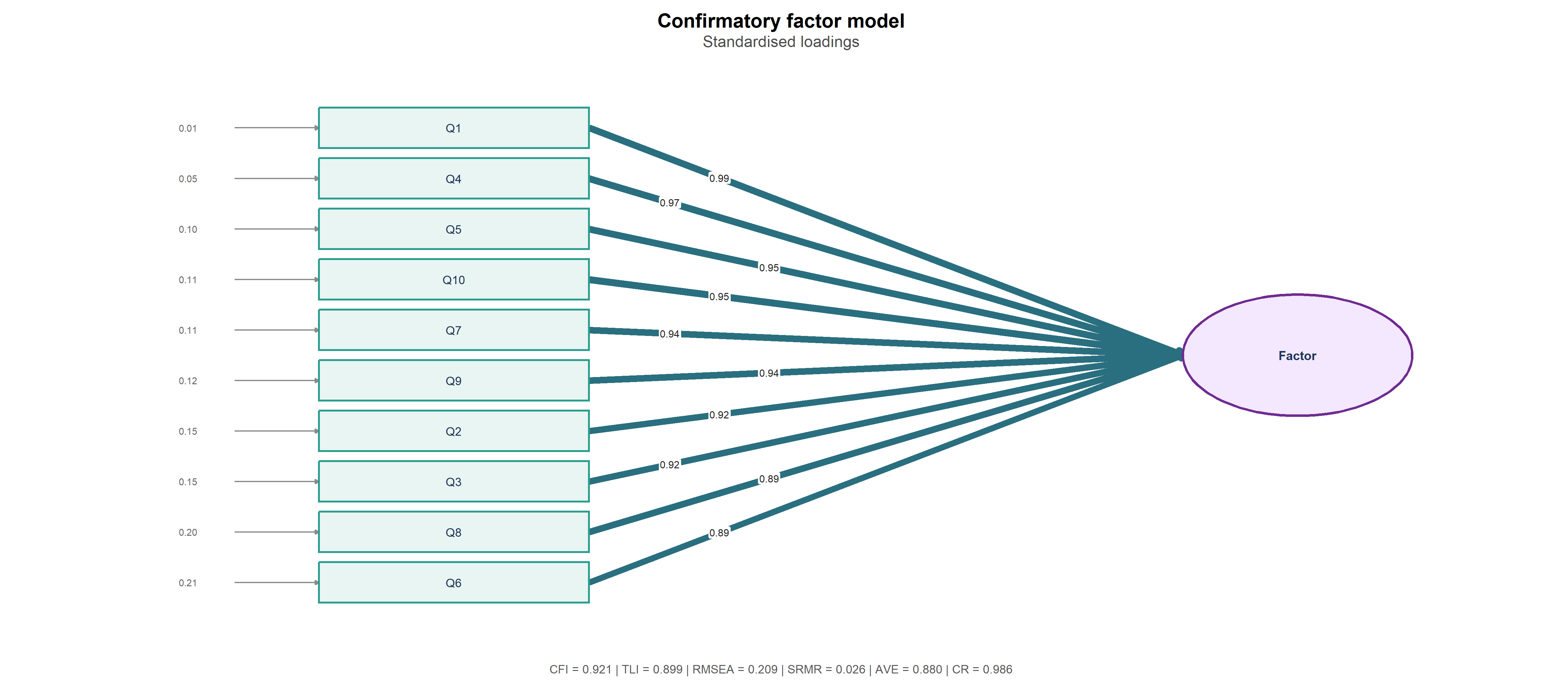
CFA path diagram. The confirmatory model with standardised loadings, residual variances and the key fit indices (CFI, TLI, RMSEA, SRMR, AVE, CR) printed below.
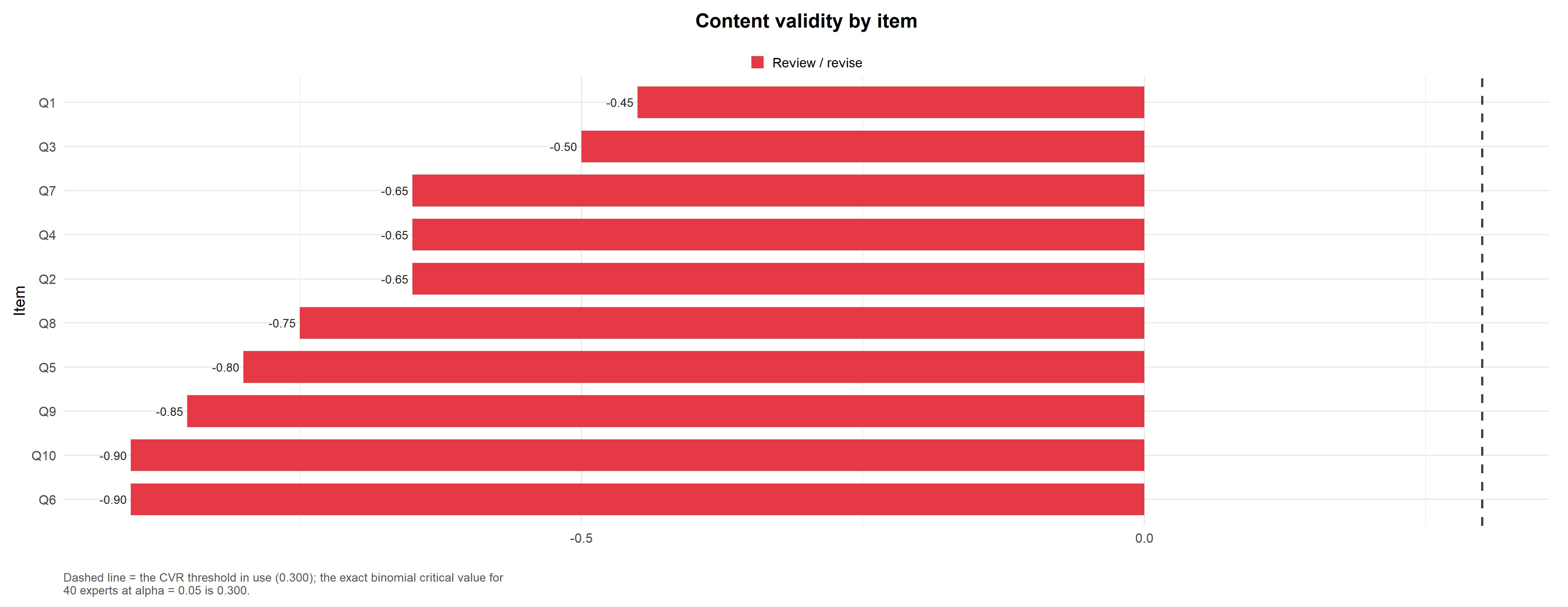
Content validity. The CVR of every item against the critical value. Items above the line are retained; items below it should be reviewed.
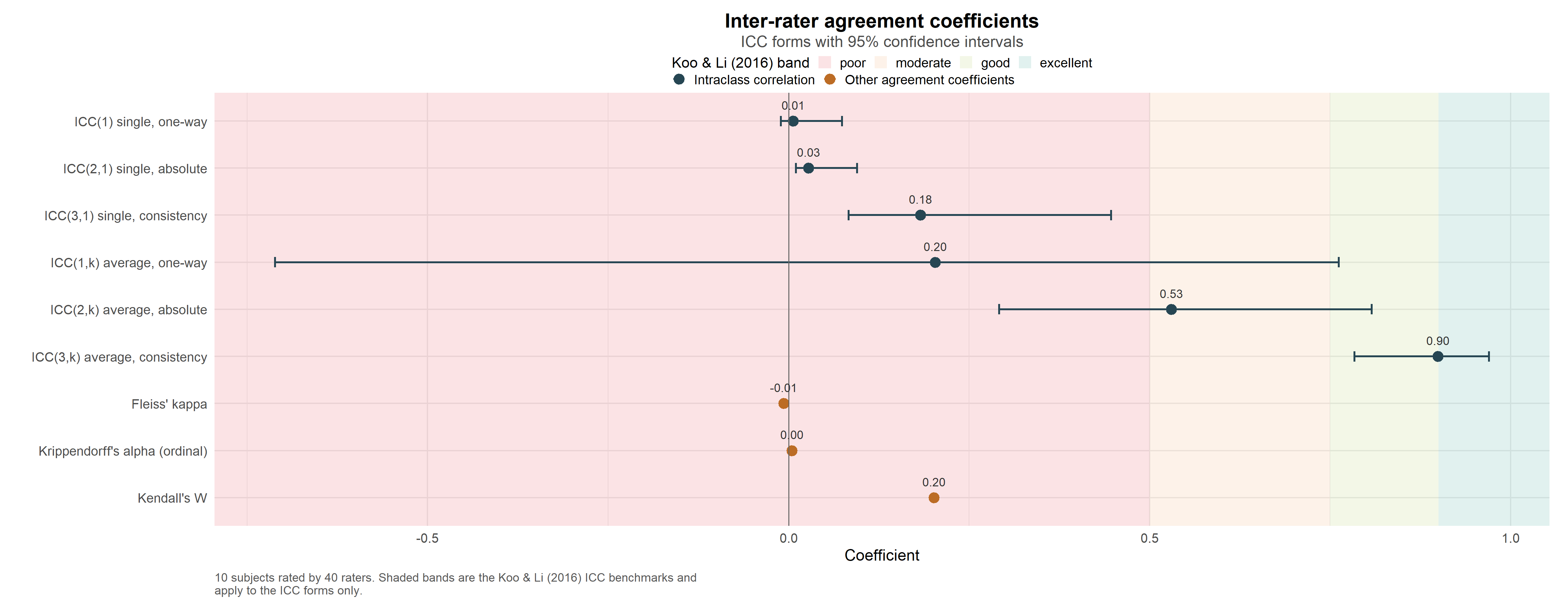
Rater agreement. A forest plot of the ICC forms and the other agreement coefficients, with confidence intervals and benchmark bands.
14 Interpretation
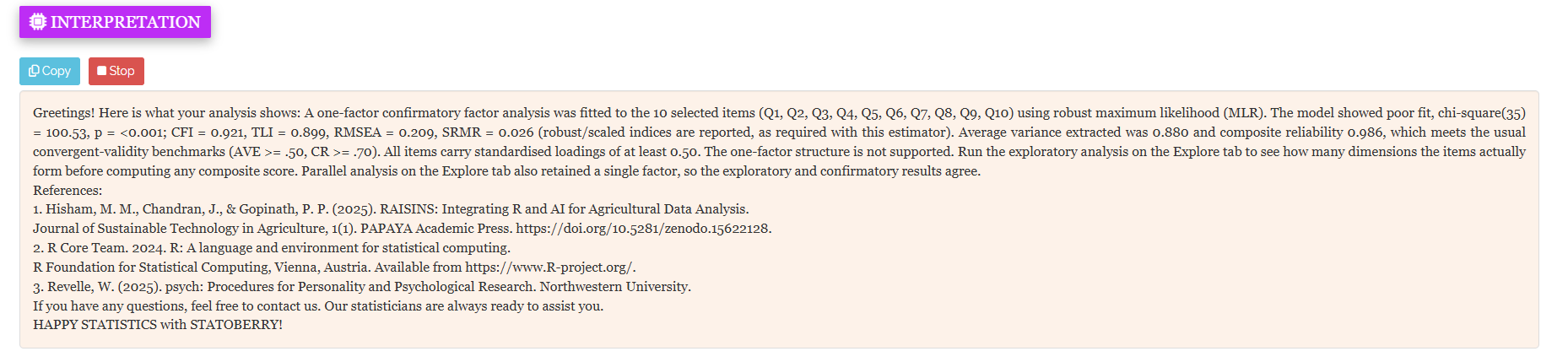
Each results sub-tab includes an Interpretation panel that summarises the results of that tab in plain language (Figure 25). It reports:
- Which coefficients meet their benchmarks and which do not.
- Which items are weak or should be reviewed.
- Whether the results of different tabs agree, for example, whether the exploratory and confirmatory analyses point to the same number of factors.
- The references to cite.
The text appears with a short typing animation. A Stop button displays the full summary immediately, and a Copy button copies the text to your clipboard.
The interpretation is a starting point for your write-up. Always check it against the numbers in the tables before using it.
15 RA-One Chat Assistant
RA-One is the built-in chat assistant. You can open it from its navigation tab or from the floating chat bubble.
Ask questions in plain language, and RA-One answers using your own analysis results. It does not give generic advice, and it does not invent values. If a value has not been calculated yet, it says so. All replies are in plain English, with no code.
RA-One has access to the complete set of results produced by the app:
- The internal consistency results, including alpha, omega and the item statistics.
- The inter-rater agreement coefficients.
- The content validity indices.
- The confirmatory fit indices, AVE and CR.
- The factorability checks and the exploratory factor solution.
You can ask it, for example, “interpret my results”, “is my alpha good enough?”, “what does ICC(2,1) mean?” or “which items should I review?”.
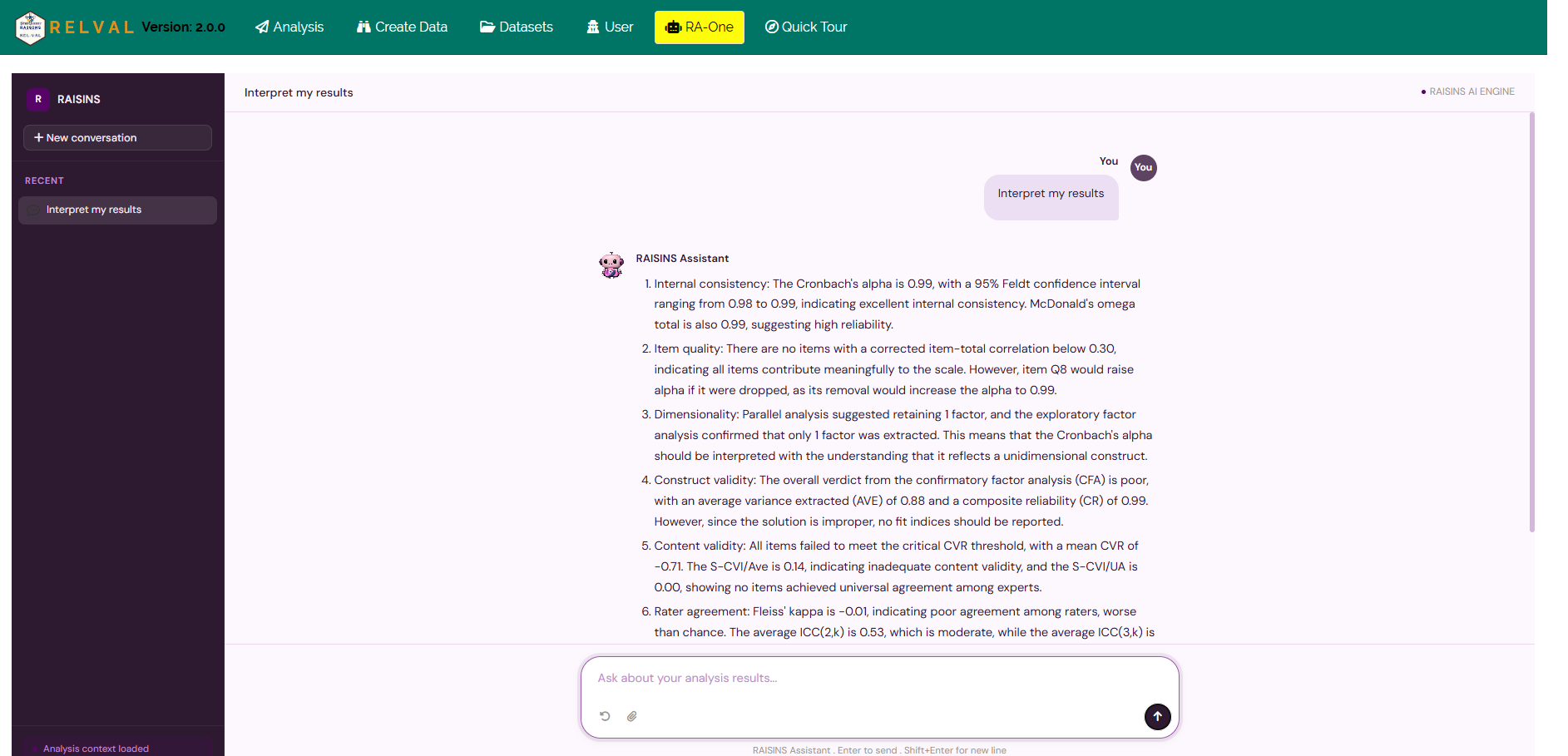
RA-One can also prepare data, show tables and generate plots.
It can build a correctly formatted data template (Section 6.4) or provide a model dataset (Section 6.3). It can display any results table on request, and it can draw any of the eleven plots in Section 13 directly in the chat, for example “show me the alpha-if-dropped plot”. Each table it shows is built from the same results as the tabs, so the numbers always match.
In a single conversation, RA-One can interpret your results, build a data template, provide a model dataset, show tables and create plots. Much of a routine reliability and validity session can be completed without leaving the chat.
16 Downloadable Reports
Five reports can be downloaded, one for each results tab: Internal Consistency, Inter-rater Agreement, Content Validity, Construct Validity and Explore.
Choose HTML, PDF or Word, then click Download (Figure 27).
Each report contains every table shown on its tab, under the same caption, so a table you saw on screen is easy to find in the file. The numbers use the same number of decimal places as the app.

17 FAQs
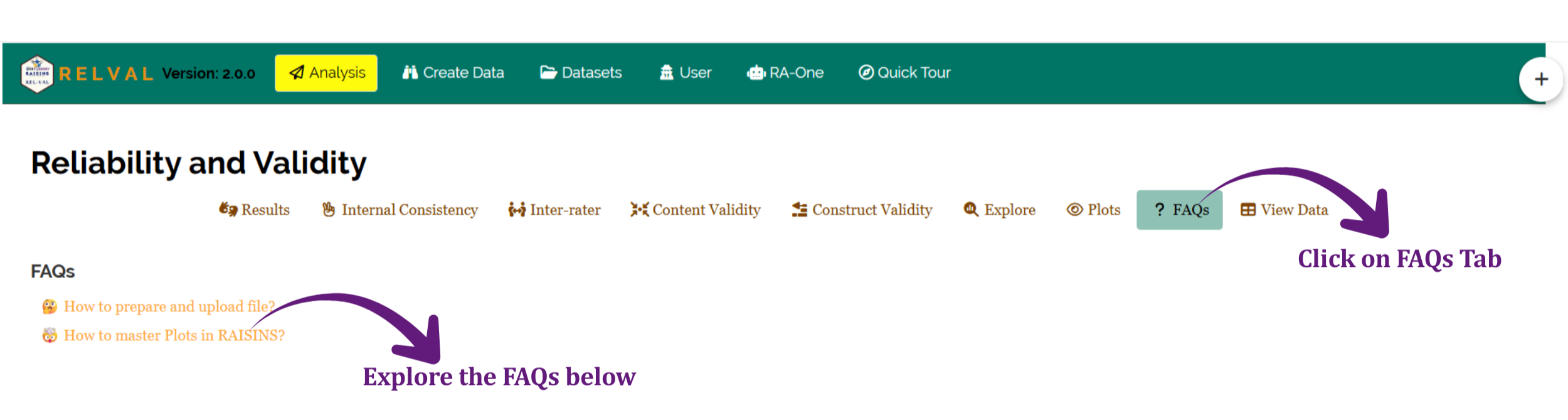
The FAQs tab answers common questions about the module, such as how to prepare and upload a file, and how to make the most of the Plots tab. Each question opens a short illustrated guide.
If you are unsure how a feature works, start here.
18 View Data
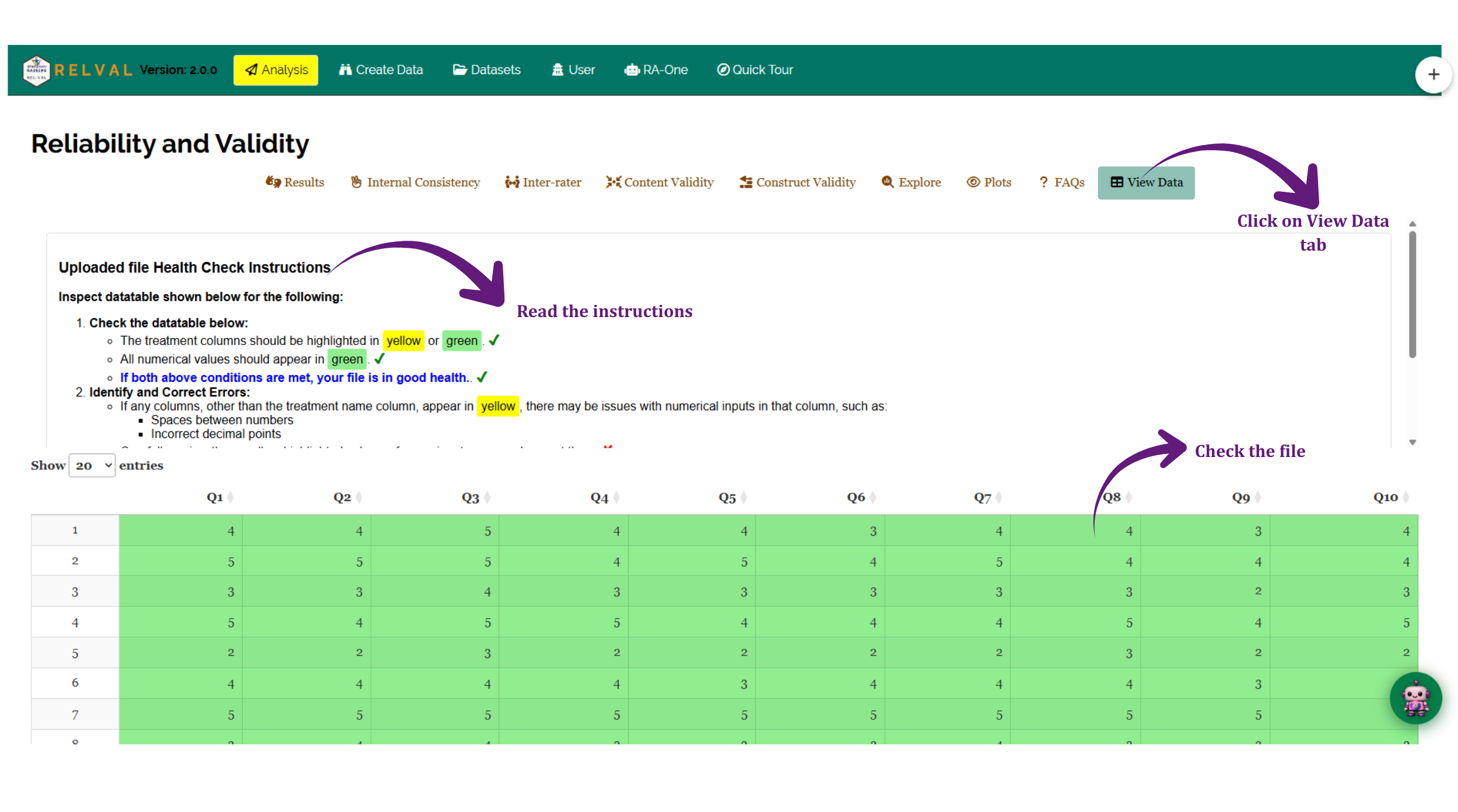
The View Data tab helps you confirm that your dataset is suitable for analysis.
When you upload a file, RAISINS runs an automated Health Check. Columns containing valid numeric values are highlighted in green. A column highlighted in yellow may contain a problem, such as spaces between numbers, incorrect decimal points or text entries.
Resolve any issues reported here before clicking Run Analysis!, so that your results are based on clean and correctly formatted data.
19 Summary
Reliability and validity analysis answers a simple question: can the total score of this questionnaire be trusted?
RAISINS answers it from four directions. Internal consistency shows whether the items agree with each other. Inter-rater reliability shows whether raters agree. Content validity shows whether experts consider the items relevant. Construct validity shows whether the items measure the construct the theory predicts. RAISINS performs all of these calculations automatically, so you can concentrate on interpreting what the results mean for your research.
If you need help at any stage, RA-One is available at all times. You can also write to us at [email protected].
A Results paragraph for the Employee dataset might read:
The ten-item scale showed excellent internal consistency (Cronbach’s α = .99, 95% CI [.98, .99]; McDonald’s ω = .99). All corrected item-total correlations exceeded .50 (range .88 to .98). A KMO of .91 and a significant Bartlett’s test, χ²(45) = 713.67, p < .001, supported factorability, and parallel analysis retained a single factor. A one-factor CFA with robust maximum likelihood showed excellent convergent validity (AVE = .88, CR = .99) but only marginal absolute fit, χ²(35) = 100.53, p < .001; CFI = .92; TLI = .90; RMSEA = .21; SRMR = .03.
Always report alpha and omega, together with the item-total correlations, and report the full set of fit indices rather than a single one.
20 Appendix: A Short History of Reliability and Validity
The idea of measuring reliability comes from Charles Spearman. In the early 1900s he showed that measurement error weakens the correlation between two tests. The Spearman-Brown formula (1910), developed with William Brown, predicts how reliability changes when a test is made longer or shorter.
In 1937, Kuder and Richardson introduced formulas for tests scored right or wrong. Lee Cronbach generalised this idea in 1951 to items with any scoring, giving the coefficient alpha that is still the most widely reported reliability statistic today. Roderick McDonald later proposed omega, which relaxes alpha’s assumption that every item measures the construct equally well.
For agreement between raters, Jacob Cohen introduced kappa in 1960, and Joseph Fleiss extended it to many raters in 1971. Shrout and Fleiss (1979) set out the six forms of the intraclass correlation used today, and Klaus Krippendorff developed an agreement coefficient that works with any number of raters and any level of measurement.
On the validity side, C. H. Lawshe (1975) proposed the content validity ratio for expert panels. Karl Jöreskog developed confirmatory factor analysis in the late 1960s, which made it possible to test whether items measure the construct a theory predicts.